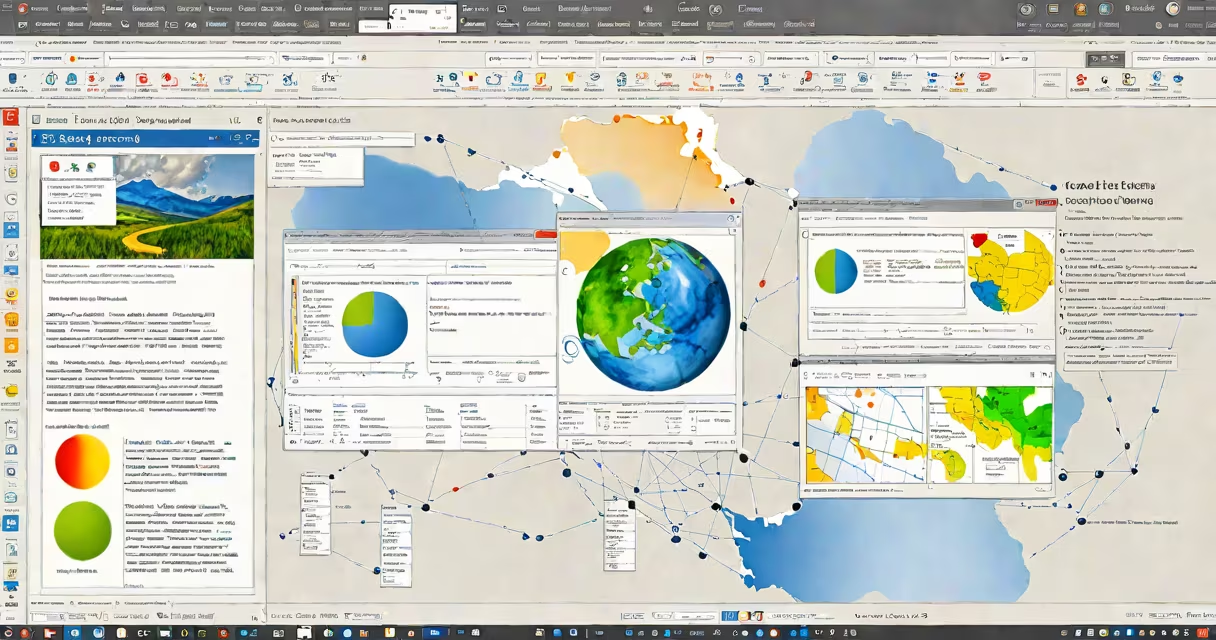
The matlab web browser is a built-in component of MATLAB that renders web content directly within the MATLAB desktop environment. It allows users to view HTML pages, access online documentation, and interact with web-based tools without switching to an external browser.
When you run the command web in MATLAB, it launches a lightweight, embedded web browser window tied to the MATLAB session. This window supports standard web protocols like HTTP and HTTPS, displays static and changing content, and handles basic navigation such as back and forward buttons. It's not a full-featured browser like Chrome or Firefox-it lacks advanced features like tabbed browsing, extensions, or private browsing-but it's sufficient for accessing documentation, help pages, and web services integrated into MATLAB workflows.
For example, typing web('https://www.mathworks.com/help/matlab/') opens the official MATLAB documentation site inside a dedicated pane. The interface remains responsive and synchronized with the MATLAB workspace, enabling smooth transitions between coding and reference lookup. This functionality reduces context-switching and improves efficiency during development.
The matlab web browser uses a rendering engine based on WebKit, the same core used by Safari and older versions of Chrome. MathWorks maintains a custom build of this engine tailored for integration with MATLAB's GUI structure. It runs in a separate process but shares the same memory space as the MATLAB application, allowing low-latency communication.
When a URL is requested via the web function, MATLAB checks the system's default browser settings. If none are set, it defaults to the internal web browser. The window appears as a dockable panel within the MATLAB desktop, positioned alongside other tools like the Editor, Workspace, and Command Window. Users can resize, move, or hide it using standard window controls.
Security is enforced through sandboxing. The browser restricts access to local files and system APIs. Scripts cannot execute JavaScript that modifies the host system. This prevents unintended side effects while still allowing interactive elements like form submissions and changing content loading.
There are two primary modes of operation for the matlab web browser:
| Mode | Description | Use Case |
|---|---|---|
| Internal Browser | Embedded in MATLAB desktop; uses WebKit engine; limited to MATLAB session. | Viewing documentation, running web-based demos, accessing MathWorks support pages. |
| External Browser | Opens in system default browser (e.g., Chrome, Edge). | Accessing complex web apps, logging into accounts, testing web interfaces. |
To switch between them, use the web function with the -browser flag. For example, web('https://www.mathworks.com', '-browser') forces the URL to open in your system's default browser. This option is useful when you need full web capabilities or want to avoid potential conflicts with MATLAB's restricted environment.
MathWorks provides a configuration utility called webBrowserPreferences to manage default behavior. You can set preferences programmatically or through the MATLAB Preferences dialog under "Web Browser." These settings persist across sessions and apply globally unless overridden per call.
Many users assume the matlab web browser is a standalone application or a plug-in. It is neither. It is a tightly integrated component of the MATLAB runtime, designed specifically for lightweight, secure access to web content. It does not support modern web standards like WebGL or WebAssembly in full-some interactive visualizations may fail to render correctly.
A frequent error occurs when trying to load sites that require cookies or authentication. The internal browser does not maintain persistent session state across calls. If you log into a service like GitHub or Google Drive through the matlab web browser, you'll need to re-authenticate each time you reopen the page. This limitation exists because the browser instance is tied to the current MATLAB session and is destroyed when MATLAB exits.
Another misconception is that the matlab web browser can replace a full browser for daily tasks. While it can handle basic navigation, it lacks features like password managers, ad blockers, and multi-tab management. Using it for extended browsing leads to poor usability and security risks. It's intended for targeted, task-specific access-not general internet use.
Consider a researcher working on signal processing who needs to reference a paper hosted on arXiv.org. Instead of copying the URL into a separate browser, they run:
web('https://arxiv.org/pdf/2103.04567.pdf')The PDF loads in the matlab web browser window. They can scroll through the document, show key sections, and return to their MATLAB code with minimal disruption. If the paper includes interactive figures rendered with JavaScript, those may not display properly due to limited scripting support. In such cases, the user switches to the external browser using web('https://arxiv.org/pdf/2103.04567.pdf', '-browser').
This workflow illustrates the balance between convenience and capability. The internal browser serves well for quick lookups, while the external option ensures compatibility with rich web content.
I once used the matlab web browser to debug a web API call in a machine learning project. The API returned JSON responses, and I needed to verify the structure. By pasting the endpoint URL into web(), I saw the raw output formatted as readable JSON. This helped me identify missing fields in my request payload. Without the browser, I'd have had to copy the response into a text editor or external viewer. The integration saved about 15 minutes of setup time during a tight deadline.
Understanding the difference between a general-purpose web browser application and MATLAB's embedded version helps clarify expectations. The latter is optimized for developer productivity, not general web consumption.
While the matlab web browser is not a replacement for modern browsers, it fills a critical role in streamlining access to online resources within a scientific computing environment. Its design prioritizes speed, security, and integration-features essential for developers focused on analysis, simulation, and algorithm development.