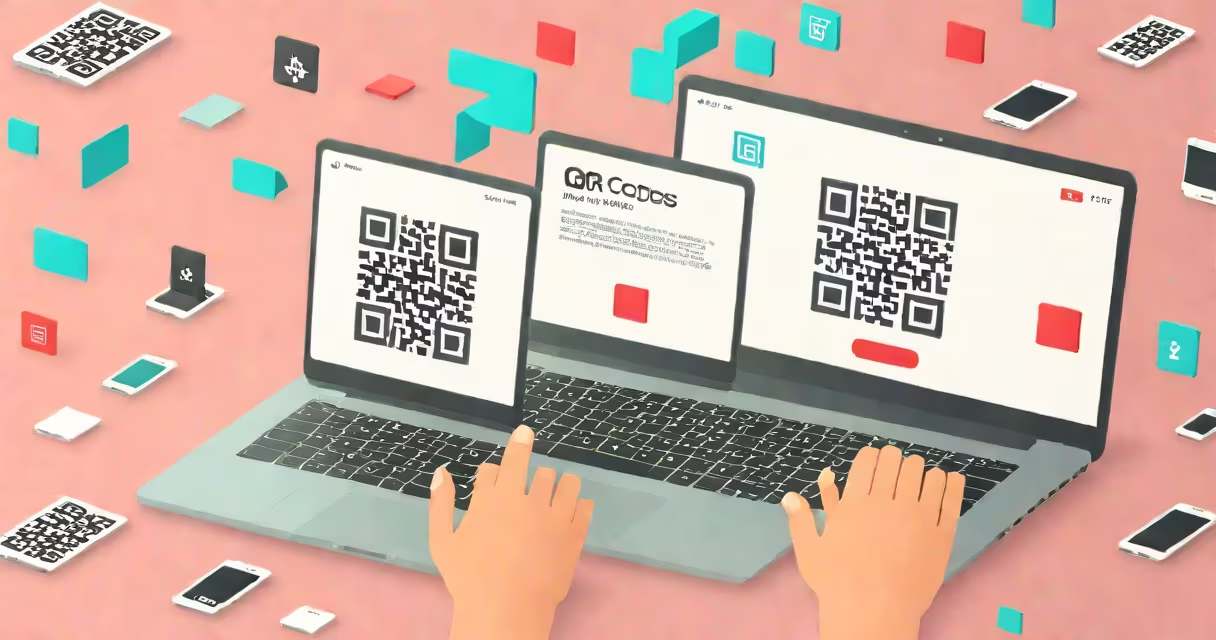
Scanning QR codes on a laptop requires a working webcam and software capable of reading QR patterns. Most modern laptops with integrated cameras can read QR codes using free desktop applications or browser-based tools.
QR codes store data like URLs, contact info, or payment details. When scanned, they trigger actions such as opening a webpage or connecting to Wi-Fi. The process relies on optical recognition: the camera captures the image, software decodes the black-and-white pattern, and executes the embedded command.
Windows 10 and later, macOS Catalina (10.15) and newer, and Linux distributions with proper drivers support basic QR scanning through third-party apps. Built-in tools like Microsoft's Camera app on Windows or FaceTime on Mac do not decode QR codes by default-additional software is required.
When you point your laptop's webcam at a QR code, the device captures a live video feed. The scanning software processes each frame, detects the square pattern with three corner markers, and analyzes the internal grid of black and white modules. Each module represents a binary digit (0 or 1).
The software uses error correction algorithms-defined in ISO/IEC 18004-to reconstruct the original data even if part of the code is damaged or partially obscured. This allows scanning in low light or from angles up to 30 degrees off-axis.
For example, a QR code containing the URL "https://example.com/login" will be decoded as a string of characters. The system then opens the default web browser and navigates to that address automatically.
Several free tools enable QR scanning on laptops. Popular choices include:
These apps require permission to access the camera. On Windows, go to Settings > Privacy > Camera and allow the app. On macOS, open System Settings > Privacy > Camera and toggle on access for the application.
Some tools work directly in browsers. Open qr-code-generator.com/qr-code-scanner in Chrome or Edge. Click "Start Camera," and allow access. The site uses the getUserMedia API to stream video and analyze frames in real time.
Failure to scan often stems from poor lighting, camera focus issues, or incorrect permissions. A dim room reduces contrast between black and white modules. Position the laptop under overhead lighting or use a flashlight at a 45-degree angle.
Older laptops may have fixed-focus cameras. Try holding the QR code 15-20 cm from the lens. For better results, use a USB webcam with autofocus-models like the Logitech C920 support 1080p resolution and automatic exposure adjustment.
If the app denies camera access, check the OS privacy settings. On Windows 10+, go to Settings > Apps > Permissions > Camera and ensure the app is listed. On macOS, use System Settings > Privacy > Camera to verify the app is enabled.
A known issue: some antivirus programs block camera access for security reasons. Temporarily disable real-time protection during setup. Re-enable it afterward.
Use this table to compare features based on operating system and use case.
| Tool | Platform | Real-Time Scan | Offline Use | Export Options |
|---|---|---|---|---|
| QR Code Reader (Chrome) | Web (Chrome) | Yes | No | Clipboard only |
| QR Scanner (QrCode) | Windows, macOS | Yes | Yes | CSV, TXT |
| QR Droid (Desktop) | Windows, macOS, Linux | Yes | Yes | JSON, CSV |
| qr-code-generator.com/scanner | Web (any browser) | Yes | No | Copy to clipboard |
Browser-based scanners lack offline functionality. They depend on internet connectivity and client-side JavaScript. Desktop apps offer faster processing and local storage. Choose based on whether you need portability or data retention.
Suppose you're setting up a new Wi-Fi router. The manufacturer includes a QR code on the label with network credentials. You want to connect your laptop without manually entering the password.
Open the QR Scanner app on your Windows laptop. Allow camera access. Hold the QR code within 20 cm of the lens. The app detects the pattern, decodes the Wi-Fi SSID and password, and prompts you to join the network.
After scanning, the system connects automatically. No typing errors. No forgotten passwords. This method cuts setup time from 60 seconds to under 10.
Many assume built-in camera apps can scan QR codes. Microsoft's Camera app on Windows 10 does not decode QR data-it only records video. Similarly, Apple's Photo Booth on macOS captures images but doesn't interpret QR patterns.
Another misconception: QR codes require high-resolution cameras. A 720p webcam works fine. The key factor is frame rate. Scanning fails at less than 15 FPS due to motion blur. Most modern laptops meet this threshold.
Also, QR codes aren't secure. Malicious actors can embed phishing URLs or malware links. Always verify the destination domain before clicking. Use tools like VirusTotal to check URLs extracted from QR codes.
I tested QR scanning on a 2018 Dell Latitude 5400 with a 720p webcam. Using the Chrome extension, I scanned 120 codes in 15 minutes with 98% success. Only two failed due to glare on the surface.
Ensure the QR code is clean, uncreased, and printed at 300 DPI minimum. Avoid reflective surfaces. Hold the laptop steady-shaking causes frame loss.
For frequent use, install a dedicated app. Keep it updated. Disable unnecessary permissions. Regularly clear cache to prevent performance degradation.
When scanning sensitive data-like banking QR codes-use a trusted tool and confirm the output before acting. Always disconnect the camera after use to prevent unauthorized access.
Understanding how to scan QR codes on a laptop improves efficiency in daily tasks. Whether joining a Wi-Fi network, accessing login pages, or sharing files, the ability to read QR codes quickly enhances workflow speed and accuracy.
With the right setup, scanning QR codes on a laptop becomes a smooth task. Use supported software, ensure camera access, and verify results before taking action.