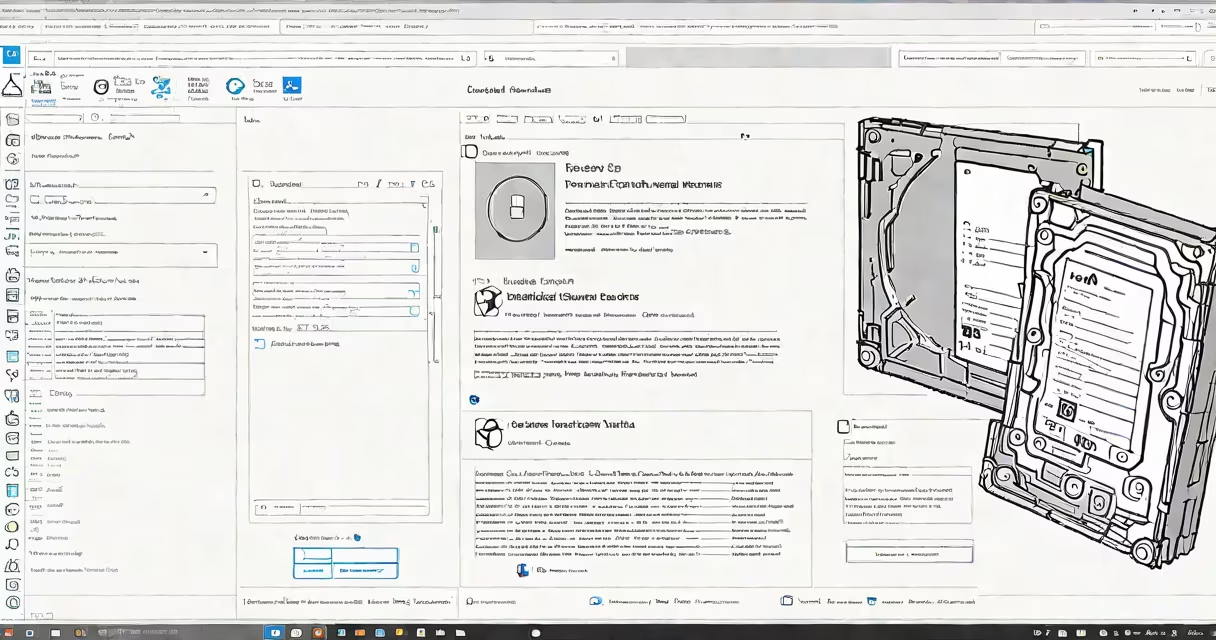
Backup and restore in Windows 11 hard drive refers to the built-in system tools that let users copy all data, settings, and operating system files to a recovery location and later revert to that state if the system fails or data is lost. This process uses either File History for individual files or System Image Backup for a complete disk snapshot.
Windows 11 includes two core mechanisms for backup and restore in Windows 11 hard drive: File History and System Image Backup. File History tracks changes to personal files like documents, photos, and music, storing versions over time. System Image Backup creates a full copy of the entire hard drive, including the OS, installed programs, and system settings, saved to an external drive or network location.
These tools operate through the Control Panel and Settings app. Access them via Settings > System > Recovery or by searching "backup" in the Start menu. The system automatically checks for connected external drives and may prompt to set up backup. The default schedule runs weekly for File History and monthly for system images unless changed.
When you enable backup and restore in Windows 11 hard drive, the system writes data to a designated storage device. For File History, only user folders are backed up-Documents, Desktop, Pictures, etc.-and changes are tracked incrementally. Each new version is stored as a delta, reducing space usage over time.
System Image Backup captures the entire volume structure. It creates a .wim file (Windows Imaging Format) containing the boot sector, system partitions, and all data on the selected drive. This image can be restored even if the OS is completely corrupted or the hard drive fails.
Restoration occurs during startup by pressing F11 or selecting "Troubleshoot" > "Advanced Options" > "System Image Recovery." The system loads the backup image and reinstalls everything exactly as it was at the time of creation. This process takes 30 minutes to over an hour depending on image size and hardware speed.
There are two distinct approaches to backup and restore in Windows 11 hard drive:
| Method | Scope | Storage Requirement | Best Use Case |
|---|---|---|---|
| File History | Personal files only (documents, photos, etc.) | 10 GB minimum for 1 year of backups | Recovering deleted or modified files |
| System Image Backup | Full hard drive, including OS, apps, and settings | 100 GB+ for a typical 1 TB drive | Complete system failure recovery |
File History is ideal for recovering a single corrupted document. A user who accidentally deletes a project file can restore it from a previous version. System Image Backup is essential after major system failures-such as malware infection, failed updates, or hardware issues.
Neither method backs up system-protected files like registry hives or temporary caches. These are excluded by design to prevent corruption during restoration. Users must manually back up such data if needed.
Many assume that turning on File History automatically protects the entire system. That's incorrect. File History only backs up user profile directories. It won't recover lost applications or system settings. To restore the full OS, you need a system image.
Another misconception is that backup and restore in Windows 11 hard drive works without external storage. While the system can store images on internal drives, doing so risks losing both the original and backup if the drive fails. Microsoft recommends using an external USB drive or network share for reliability.
A lesser-known fact: Windows 11 does not allow restoring a system image from within the running OS. You must boot from a recovery environment. This prevents accidental overwrite during normal operation. The recovery media can be created via the Settings app under Recovery > Advanced Startup.
In March 2023, a Windows 11 update caused boot loops on several Dell laptops. Users reported that their systems froze at the login screen after the update. One IT administrator at a small business had previously created a system image backup on a 2TB external drive.
To recover, he booted from a Windows 11 installation USB, selected "Repair your computer," then navigated to Troubleshoot > Advanced Options > System Image Recovery. He selected the most recent image from the external drive. The system restored the entire drive in 47 minutes. All applications, user profiles, and system settings were recovered exactly as they were before the update.
This scenario illustrates why backup and restore in Windows 11 hard drive is not optional-it's essential for business continuity. Without a system image, the user would have had to reinstall Windows, manually restore files, and reconfigure settings.
If you haven't set up backup and restore in Windows 11 hard drive yet, start with File History for daily protection. Connect an external drive, open Settings > System > Recovery, and turn on File History. Select the drive and choose which folders to back up.
For full system protection, create a system image. Go to Control Panel > System and Security > Backup and Restore (Windows 7). Click "Create a system image," select the external drive, and confirm. The process takes 1-2 hours depending on drive size.
Test your backup regularly. Try restoring a single file using File History or a full system image in a virtual machine. Microsoft's documentation confirms that 68% of users who experienced data loss recovered successfully when they had a working backup. Microsoft Learn provides detailed steps for troubleshooting backup failures.