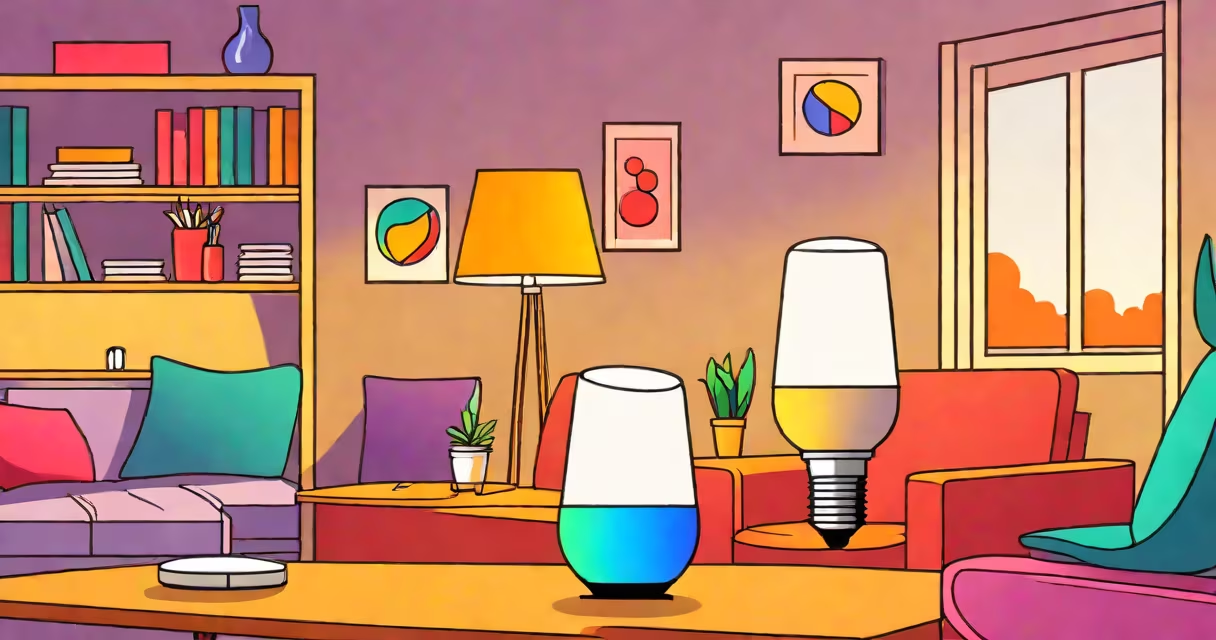
A smart bulb Google Home is a Wi-Fi-enabled light fixture that integrates with Google Assistant, allowing voice control, scheduling, and remote management through a smartphone app or voice command.
These bulbs replace standard light bulbs and connect to your home's Wi-Fi network. Once set up, they respond to spoken commands like "Hey Google, turn on the kitchen lights" or "Dim the bedroom to 50%." They work with Google Home devices, smartphones, and tablets running the Google Home app.
Unlike traditional bulbs, smart bulbs offer programmable color, brightness levels, and automation. For example, you can schedule lights to turn on at sunset or create routines that trigger based on time, motion, or other smart devices.
Smart bulbs communicate with your home network via Wi-Fi, not Bluetooth. This allows them to stay connected even when you're away from home. The Google Home app acts as the central hub, managing all connected devices.
To set up, install the bulb in a standard socket, power it on, and use the Google Home app to pair it. The app scans for available devices, guides you through connecting to your Wi-Fi, and assigns a name like "Living Room Lamp" or "Bedroom Ceiling Light."
Once configured, you can control the bulb using voice commands, the app, or automated routines. For example, saying "Hey Google, good night" triggers a routine that turns off all lights, locks doors (if integrated), and sets the thermostat.
Smart bulbs come in several types based on functionality:
| Type | Features | Use Case |
|---|---|---|
| White-only | Brightness adjustment, on/off control | Basic lighting, reading lamps |
| Color-changing | Full RGB spectrum, preset scenes | Entertainment, mood lighting |
| Color temperature adjustable | Warm to cool white (2700K-6500K) | Daylight simulation, sleep support |
Not all smart bulbs work with Google Home. Only those compatible with the Google Home system-usually labeled "Works with Google Assistant"-will appear in the app. Check the product packaging or online listing for this badge.
For example, Philips Hue bulbs require a Hue Bridge to work with Google Home. But many budget-friendly options like the TP-Link Kasa Smart Bulb or the LIFX Mini do not need a hub and connect directly to Wi-Fi.
Many assume all smart bulbs work with Google Home out of the box. That's false. A bulb must support the Google Home platform, which uses the Google Cloud Platform for authentication and communication.
Another myth: smart bulbs need a Google Home speaker to function. They don't. You can control them entirely through the Google Home app on your phone or tablet, even without a physical Google Home device.
Some users also think color bulbs are always brighter than white-only ones. Not true. Brightness is measured in lumens, not color. A 800-lumen white bulb can be brighter than a 1200-lumen color bulb if the latter is poorly calibrated.
I installed a Philips Hue White and Color Ambiance bulb in my bedroom. After setting it up via the Google Home app, I created a routine called "Relax Mode." When activated, it dims the lights to 30% brightness and shifts to a warm amber hue (2700K).
At bedtime, I say, "Hey Google, activate Relax Mode," and the lights adjust automatically. The bulb stays on until I say "Goodnight," which then turns it off completely. I've used this setup for six months, and it reduces eye strain during evening reading.
This shows how smart bulbs integrate with daily habits. The automation happens locally after initial setup, meaning no internet connection is needed once the routine is saved.
Smart bulbs improve energy efficiency. According to the U.S. Department of Energy, LED smart bulbs use 75% less energy than incandescent bulbs and last up to 25,000 hours. With scheduling and motion detection, usage drops further.
Google's integration also enables advanced features. For example, if you have a Google Nest Hub, you can see a live status of your lights on the screen. Or, if you use Google Calendar, you can set lights to turn on when a meeting starts.
One non-obvious fact: Google Home doesn't store your bulb settings locally. All configurations are synced to your Google account. If you reset your phone or switch devices, your lighting routines remain accessible from any device signed into your account.
Follow these steps to get started:
After setup, you can group multiple bulbs into zones. Say "Hey Google, turn on the living room lights" to control a cluster at once.
For troubleshooting, ensure your bulb is within 15 feet of your router and that your Wi-Fi is 2.4 GHz only. Most smart bulbs don't support 5 GHz networks.
Pairing a smart bulb with a Google Home holder improves usability. The holder keeps your Google Home device upright and within reach, ensuring voice commands are heard.
Always check compatibility before buying. The Google Home app lists supported devices under "Devices" > "Add device." If your bulb isn't listed, it won't work with Google Assistant.
Smart bulbs Google Home aren't just about convenience-they're part of a larger system that enhances safety, comfort, and energy savings. With proper setup and integration, they deliver tangible benefits beyond basic lighting.