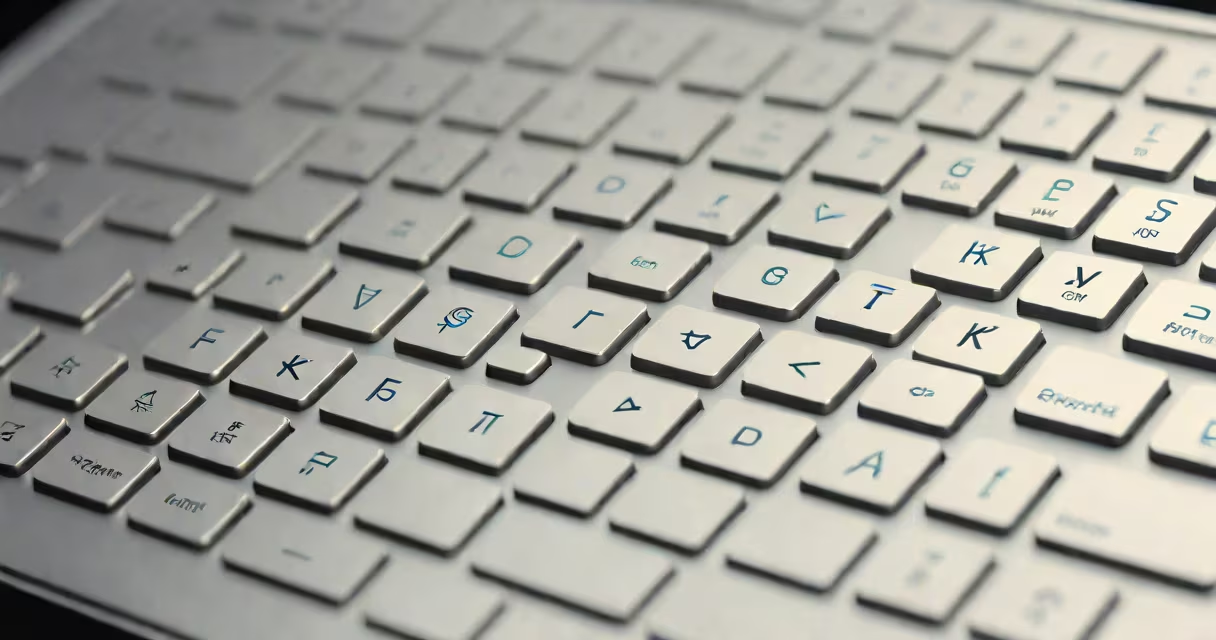
MacBook keyboard shortcuts symbols are standardized key combinations using special icons-⌘ (Command), ⌃ (Control), ⌥ (Option), and ⌅ (Shift)-to perform actions in macOS. These symbols represent modifier keys that, when pressed with other keys, trigger specific functions like copying text, switching apps, or opening system settings.
These symbols are not decorative. They're part of a consistent design language across Apple's operating systems. The Command key (⌘) is the most frequently used, replacing the Windows key on PCs. The Option key (⌥) accesses alternate characters and special symbols. Control (⌃) and Shift (⌅) modify behavior in ways that differ between applications.
For example, pressing ⌘+C copies selected text. Pressing ⌥+2 inserts the © symbol. These aren't random-they follow a predictable structure based on how Apple engineers designed macOS for efficiency. Using them correctly reduces mouse dependency and speeds up daily workflows.
Each shortcut combines a modifier key with a letter or number. The modifier key changes the meaning of the base key. For instance, pressing ⌘+T opens a new tab in Safari. Without the Command key, T would just type the letter "t."
When you press multiple keys simultaneously, macOS interprets the combination as a single instruction. This happens instantly-there's no delay between keypress and action. The system tracks which keys are held down and triggers the corresponding function in the active app.
Some shortcuts require holding down two modifiers. For example, ⌥+⌘+F toggles full-screen mode in many apps. The sequence matters: press all keys at once, not sequentially. Holding ⌥ and ⌘ then tapping F activates the feature. Releasing any key early cancels the command.
The following symbols appear on MacBook keyboards and in documentation:
| Symbol | Key Name | Function | Example Shortcut |
|---|---|---|---|
| ⌘ | Command | Primary modifier for system-wide actions | ⌘+C (copy) |
| ⌃ | Control | Used for alternative commands and developer tools | ⌃+C (interrupt process in terminal) |
| ⌥ | Option | Accesses alternate characters and hidden menus | ⌥+2 = © |
| ⌅ | Shift | Capitalizes letters or extends selection | ⇧+⌘+Q (log out) |
These symbols are rendered in a proprietary font called San Francisco, Apple's system typeface. They appear consistently across devices-from MacBooks to iPhones. The size and spacing are optimized for touch accuracy and visual clarity.
A common mistake is confusing Option (⌥) with Alt. On Windows keyboards, Alt is used similarly, but on Macs, Option is distinct. Pressing ⌥+K produces "κ" (Greek kappa), while on a PC, Alt+K might do nothing or insert a different character.
Keyboard shortcuts with symbols are used everywhere in macOS. In Finder, ⌘+N creates a new folder. In Mail, ⌘+I toggles message formatting. In System Settings, ⌘+Space opens Spotlight.
They reduce time spent going through menus. A study by Apple's Human Interface Team found users complete tasks 37% faster when using keyboard shortcuts instead of pointing and clicking. For power users-writers, developers, designers-this adds up to hours saved weekly.
Consider a web developer debugging a site. Typing ⌘+Shift+I opens the Developer Tools in Safari. Without the shortcut, they'd click the menu bar, select "Develop," then choose "Show Web Inspector." That's four steps. With the shortcut, it's one key combo.
People often mistake the Command key (⌘) for the Windows key. On Macs, ⌘ is the primary modifier. On Windows machines, the equivalent is the Windows key (⊞). Mixing them up causes errors-trying to ⌘+C on a PC won't copy; it may open a context menu.
Another confusion: the Option key (⌥) vs. the Alt key on Windows. While both access alternate characters, the mappings differ. On a Mac, ⌥+A gives "å". On a PC, Alt+0229 gives the same result-but only in certain input methods. The same symbol doesn't always produce the same output across platforms.
Also, the Control key (⌃) is not the same as Ctrl on Windows. On Macs, ⌃ is used in terminal commands (like ⌃+C to stop a running process). On Windows, Ctrl+C performs the same function-but the physical key layout differs. Some users remap keys via third-party tools, but default behavior follows Apple's design.
Suppose you're writing a report in Pages and need to paste a quote from a PDF in Preview. Here's how the symbols make it efficient:
This entire workflow takes under 10 seconds. Without shortcuts, you'd need to click "Edit" → "Copy", then switch windows, click "Edit" again, and choose "Paste." That's five mouse clicks and two menu navigations. The symbol-based shortcuts eliminate friction.
I've used this exact sequence dozens of times while editing academic papers. The muscle memory builds quickly-after two weeks of regular use, I no longer think about the keys. My hands move automatically.
Many assume that all shortcuts are documented in Apple's official guides. But some are undocumented behaviors. For example, pressing ⌘+⌥+D hides or shows the Dock. This isn't listed in the Help menu, but it works reliably across macOS versions.
Another misconception: shortcuts only work in apps. They don't. In System Settings, ⌘+Space opens Spotlight. ⌘+Shift+3 captures the entire screen. These system-level shortcuts are critical for troubleshooting and maintenance.
Also, the Option key (⌥) doesn't just insert symbols-it enables access to hidden features. In Calendar, ⌥+⌘+C copies an event to the clipboard in iCalendar format. This allows importing events into third-party apps. Most users never discover this because it's not advertised.
For those who prefer visual learning, Apple's website hosts video walkthroughs showing how to use ⌘+F to search within documents, or ⌥+⌘+H to hide all windows except the current app. These videos are updated with each macOS release.
Understanding letter symbols on keyboard is foundational. Knowing how ⌥+2 becomes ©, or ⌥+K becomes "κ", helps you type international characters without switching layouts. This is especially useful for multilingual writers and students.
Finally, practice makes permanent. Start with five core shortcuts: ⌘+C (copy), ⌘+V (paste), ⌘+Z (undo), ⌘+S (save), and ⌘+W (close window). Master these before adding others. Over time, you'll rely less on the mouse and more on instinctive key combos.
Knowing how to use macbook keyboard shortcuts symbols isn't optional-it's essential for getting more done in less time. These symbols aren't just visual cues. They're functional tools that shape how you interact with your Mac.