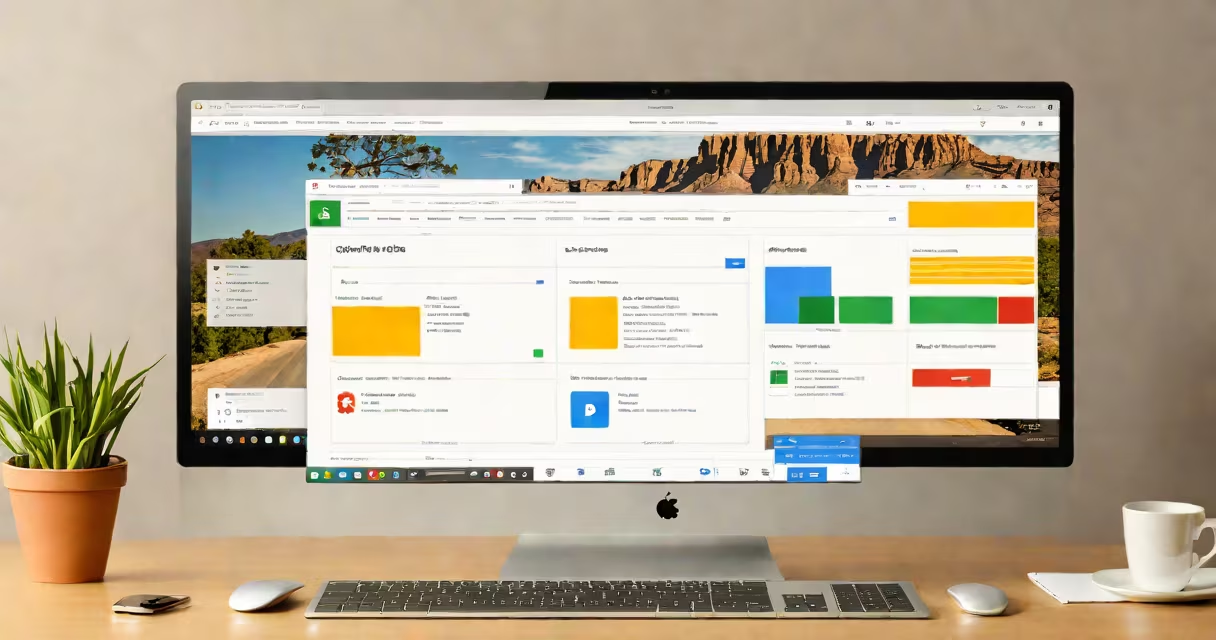
Backing up your computer to Google Drive means automatically copying your files-documents, photos, videos-to Google's cloud storage service, where they're stored securely and accessible from any device with internet access. This process protects against data loss from hardware failure, accidental deletion, or theft.
Google Drive integrates directly with Windows and macOS systems through the official desktop app. Once installed, it syncs selected folders in real time. Changes made locally appear in the cloud within seconds. Files remain encrypted during transfer and while stored, meeting industry standards for data protection.
For users who don't want to install software, Google Drive also supports manual uploads via web browser. However, automated backup requires the desktop client. The free tier offers 15 GB shared across Gmail, Drive, and Photos. Additional space costs $1.99/month for 100 GB.
The core mechanism relies on continuous file monitoring. When you save a document to a folder designated for syncing, the Google Drive app detects the change and uploads it to Google's servers. A green checkmark appears on the file icon when the upload completes.
Conflicts arise when two devices edit the same file simultaneously. Google Drive resolves this by creating a copy with "(conflict)" appended to the name. You can choose which version to keep. This prevents data corruption and ensures no changes are lost during sync.
Background sync runs even when the app is minimized. Bandwidth usage is adjustable under Settings → Network. Users on limited data plans can restrict sync to Wi-Fi only or pause it during peak hours.
There are two primary approaches to backing up your computer to Google Drive:
| Type | What's Included | Setup Effort | Best For |
|---|---|---|---|
| Manual Upload | Selected files or folders | Low | One-time archiving, small projects |
| Automatic Sync | Entire designated folders (e.g., Documents, Desktop) | Medium | Ongoing protection, large collections |
Automatic sync is the most effective method for long-term data preservation. It captures new files as soon as they're created. Manual uploads require deliberate action and risk missing updates.
Many users mistakenly assume that everything on their computer gets backed up. That's false. Only files placed inside the Google Drive folder (or linked via the app) are synced. System files, application caches, and temporary data remain local unless explicitly moved.
One widespread error is believing that deleting a file from the local Google Drive folder also removes it from the cloud. This is incorrect. Deleting a synced file moves it to the Trash in Google Drive, where it remains for 30 days before permanent removal. To delete permanently, you must empty the trash manually.
Another confusion stems from the difference between backup and file sharing. Sharing a file with someone else doesn't count as backup. Anyone with the link can view or edit it-even if they're not authorized. Always use permissions settings to control access.
I once witnessed a user lose months of work because they deleted a folder from their laptop without realizing it was still synced. The files vanished from both devices. Recovery required restoring from the 30-day trash period. This highlights why understanding sync behavior is essential.
To back up your computer to Google Drive using automatic sync:
After setup, any new file added to the Documents folder appears in Google Drive within 10 seconds. You can verify this by logging into drive.google.com from another device.
For advanced users, you can exclude specific file types. Right-click the Google Drive folder → Properties → Advanced → Exclude files with extensions like .tmp or .log. This reduces bandwidth usage and speeds up sync.
Backing up your computer to Google Drive is not the same as storing files online. It's a proactive data protection strategy. Unlike a simple cloud folder, it provides version history. Each file keeps a record of previous edits, allowing rollback to earlier versions.
According to Google's official documentation, deleted files can be restored from the trash for up to 30 days. Version history goes back 30 days for free accounts and longer for paid tiers. This feature makes Google Drive suitable for legal documents, research drafts, and creative work.
Microsoft's Azure Backup service offers similar functionality but targets enterprise environments. Individual users find Google Drive simpler and more affordable for personal use.
Setting up the backup is straightforward. But maintaining it requires discipline. Avoid saving files directly to the C:\ drive or Downloads folder unless you've moved them to the Google Drive directory. Otherwise, they won't sync.
When you back up computer to Google Drive, you're not just moving files. You're creating a resilient data layer that survives crashes, theft, and human error. With proper configuration, it becomes part of a reliable digital safety net.