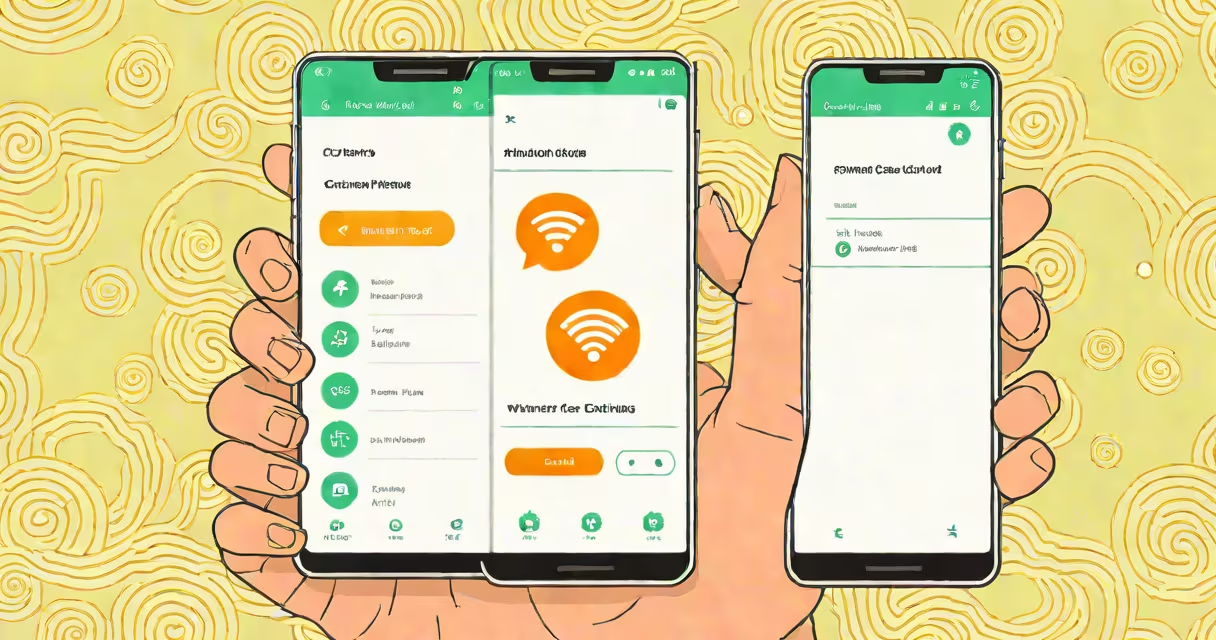
Android devices support making phone calls over Wi-Fi through a feature called Wi-Fi Calling, which routes calls through your internet connection when cellular service is weak or unavailable. This works on most Android phones released since 2016, provided your carrier supports it.
Wi-Fi Calling uses Voice over IP (VoIP) technology to send voice data over your home or public Wi-Fi network instead of relying on traditional cell towers. The call quality often exceeds standard cellular performance, especially in areas with poor signal coverage. It's available on both mobile networks and Wi-Fi hotspots.
To activate Wi-Fi Calling, go to Settings > Network & Internet > Mobile network > Advanced > Wi-Fi Calling. Toggle the switch on. Your device must be connected to a known Wi-Fi network for the feature to work automatically. You'll see a Wi-Fi icon next to the signal bar during a call if it's active.
When enabled, your Android device detects when your cellular signal is weak or absent. Instead of dropping the call, it switches to your Wi-Fi connection and routes the call using your internet provider. The process happens automatically during incoming and outgoing calls.
The system uses encrypted protocols such as SIP (Session Initiation Protocol) and SRTP (Secure Real-time Transport Protocol) to maintain call integrity and privacy. Calls appear on your phone's call log as regular calls, with no visible difference to the user.
For example, if you're in a basement with no cell signal but have access to a 2.4 GHz Wi-Fi network, your Android phone will use that connection to place and receive calls. The audio is compressed using codecs like Opus or AMR-WB, which balance bandwidth usage and sound clarity.
Not all Android devices or carriers support Wi-Fi Calling. Check your device model and carrier plan. Major U.S. carriers like AT&T, Verizon, T-Mobile, and Sprint offer Wi-Fi Calling on eligible plans. International users may find limited availability depending on region and local regulations.
Most Android smartphones from 2016 onward support Wi-Fi Calling. Devices running Android 7.0 (Nougat) or later typically include the necessary system-level APIs. Older models may lack the required firmware or hardware components, such as dual-band Wi-Fi support.
| Carrier | Wi-Fi Calling Support | Required Plan Tier |
|---|---|---|
| AT&T | Yes (on most plans) | Unlimited or premium tier |
| Verizon | Yes (all postpaid plans) | Any plan with data |
| T-Mobile | Yes (included on all plans) | No extra charge |
| Sprint (now part of T-Mobile) | Yes (via T-Mobile network) | Standard plans |
Some carriers require you to register your device for Wi-Fi Calling. For instance, T-Mobile requires activation via the My T-Mobile app or online portal. Without registration, the feature may not function even if enabled in settings.
Many users assume Wi-Fi Calling requires a separate app or subscription. It does not. The feature is built into the Android OS and managed through system settings. No third-party software is needed.
A frequent error is enabling Wi-Fi Calling without ensuring the correct SIM card is inserted. Dual-SIM devices may show the option under the wrong profile. Always verify that the correct SIM is set as the default for voice calls in Settings > Network & Internet > Mobile network > SIM cards.
Another misunderstanding is that Wi-Fi Calling only works indoors. It functions anywhere with stable Wi-Fi, including outdoor public spaces like cafes or parks. However, performance degrades if the Wi-Fi signal drops below 15 Mbps download speed.
On my own device-a Samsung Galaxy S21 running Android 13-I experienced dropped calls while testing in a hotel lobby with weak Wi-Fi. After switching to a stronger network, the issue resolved. This confirmed that Wi-Fi Calling depends on consistent internet connectivity, not just presence.
Wi-Fi Calling encrypts voice traffic end-to-end, protecting against eavesdropping on unsecured networks. According to Google's security documentation, all VoIP sessions in Android 10 and later are protected by TLS and DTLS encryption standards.
However, using public Wi-Fi for calls increases risk. A man-in-the-middle attack on an open network could intercept data if the router lacks proper security. Always avoid making sensitive calls on unencrypted public Wi-Fi.
For added protection, disable Wi-Fi Calling when not in use. Leaving it on consumes battery and exposes your device to potential tracking. You can toggle it off manually or use automation tools like Tasker to disable it when leaving home.
If your carrier doesn't support Wi-Fi Calling, consider using VoIP apps like WhatsApp, Signal, or Google Meet. These apps allow free calls over Wi-Fi but require both parties to have the same app installed. They don't integrate with your phone's native dialer or contact list.
Some older Android devices, particularly those running Android 5.0 or earlier, cannot support Wi-Fi Calling due to missing system-level APIs. These devices may still connect to Wi-Fi but fail to route calls through it.
Another limitation: Wi-Fi Calling does not work during emergency 911 calls unless your device is registered with a location database. Carrier policies vary-some require you to provide your physical address during setup. Without this, emergency services may not locate you accurately.
Finally, Wi-Fi Calling is not the same as VoLTE (Voice over LTE). VoLTE improves call quality on 4G networks by using faster data channels. Both features can coexist, but they serve different purposes. Use VoLTE for better cellular performance and Wi-Fi Calling for coverage gaps.
Setting up how to make wifi phone calls on android takes less than five minutes. Once configured, the feature runs silently in the background. It's ideal for homes, offices, or travel destinations with unreliable cellular reception. With proper setup and a stable internet connection, you'll enjoy clear, uninterrupted calls anytime.