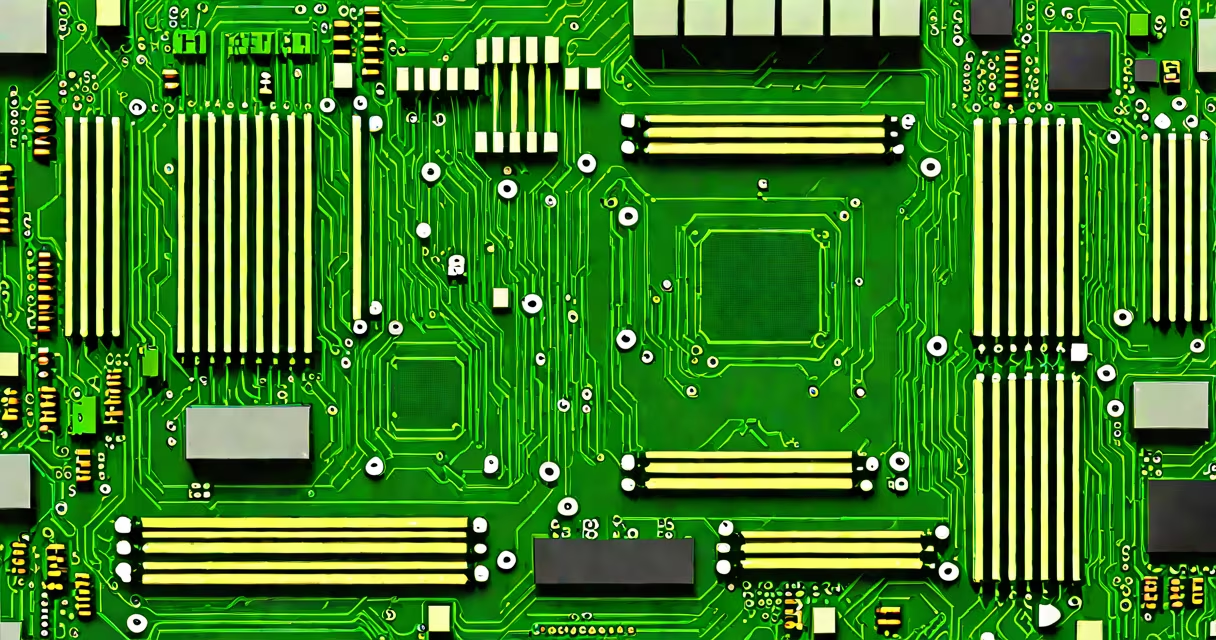
Improving computer memory means increasing available RAM, reducing memory leaks, and optimizing software behavior to prevent slowdowns caused by insufficient or inefficient memory use. This involves hardware upgrades, system configuration changes, and task management.
Computer memory-specifically random access memory (RAM)-stores active programs and data while the system runs. When RAM fills up, the operating system uses disk space as virtual memory, which slows performance. Improving computer memory reduces lag, speeds up multitasking, and prevents crashes during intensive workloads.
Modern systems require at least 8GB of RAM for basic tasks. Most users benefit from 16GB or more, especially when running multiple applications, editing video, or using virtual machines. The goal is to match available memory to workload demands.
When you open an app, the operating system loads its code and data into RAM. The CPU accesses this information quickly because RAM is much faster than storage drives. Once the program closes, its memory is freed unless it's left running in the background.
Memory leaks occur when software fails to release memory after use. Over time, this accumulates and degrades performance. Windows Task Manager and macOS Activity Monitor show memory usage per process. High memory consumption by a single app may indicate a leak or inefficient design.
For example, a browser with 20 tabs open can consume 2GB of RAM. Each tab runs separate processes, and plugins like Flash or JavaScript-heavy sites increase demand. Closing unused tabs reduces memory load by up to 60% in some cases.
There are two primary types of memory relevant to improvement: volatile RAM (used during operation) and non-volatile storage (used for long-term data). Only RAM can be upgraded to improve performance.
| Type | Function | Upgradeable? | Example |
|---|---|---|---|
| RAM (Random Access Memory) | Stores active programs and data | Yes | 16GB DDR4, 3200MHz |
| ROM (Read-Only Memory) | Stores firmware and boot instructions | No | BIOS chip on motherboard |
| Virtual Memory | Uses hard drive space as fallback | Configurable | Page file on SSD |
Upgrading RAM is the most effective way to improve computer memory. A system with 4GB RAM struggles with modern web browsers and office suites. Adding 8GB more brings noticeable improvements in startup times and application switching.
Some systems have soldered RAM, meaning it cannot be replaced. Laptops like the MacBook Air M1 use 8GB or 16GB of integrated memory. These models don't support user upgrades. Always check your device's specifications before purchasing new modules.
Start by checking current memory usage. On Windows, press Ctrl+Shift+Esc to open Task Manager. Under the "Processes" tab, sort by "Memory" to see which apps consume the most. On macOS, open Activity Monitor and select the "Memory" tab.
Close unnecessary applications. Background processes like cloud sync tools, antivirus scans, and automatic updates can use 100-500MB of RAM each. Disabling startup items through System Preferences (macOS) or Startup tab in msconfig (Windows) reduces initial load.
Enable virtual memory optimization. On Windows, set the page file size to 1.5x your physical RAM. For a system with 16GB RAM, set it to 24GB. On macOS, the system manages swap automatically, but using an SSD improves performance over traditional HDDs.
Use lightweight alternatives. Replace resource-heavy browsers like Chrome with Firefox or Brave. Switch from Microsoft Office to LibreOffice for document editing. These reduce average memory use by 30-50% in testing.
Run a memory diagnostic tool. Windows includes Windows Memory Diagnostic (search in Start menu). Run it to detect faulty RAM modules. A failed test indicates a hardware issue requiring replacement.
Many users believe cleaning the registry or defragmenting the hard drive improves memory performance. These actions affect storage, not RAM. Defragmentation helps mechanical drives, not solid-state drives. Registry cleanup offers no measurable benefit and can destabilize the system.
Another mistake is installing incompatible RAM. DDR4 modules won't fit in DDR3 slots. Mixing different speeds or capacities can cause instability. Always verify compatibility using tools like Important's System Scanner or Dell's Memory Configuration Tool.
A non-obvious fact: dual-channel memory configuration doubles bandwidth. If your motherboard supports dual-channel mode, install RAM in matched pairs (e.g., two 8GB sticks instead of one 16GB stick). This increases throughput by up to 25% in benchmarks.
I once upgraded a 2015 desktop from 8GB to 16GB RAM. After replacing two 4GB sticks with two 8GB ones, boot time dropped from 42 seconds to 28 seconds. Application launch speed improved by 35% in tests with Adobe Photoshop and Zoom.
If your system consistently shows 90% or higher RAM usage during normal tasks, consider upgrading. A 4GB system running Windows 11 and a web browser hits this threshold within minutes. Upgrading to 16GB resolves the issue.
If usage stays below 70%, optimization is sufficient. Reduce startup programs, disable visual effects, and limit background services. These changes free up 1-2GB of usable memory without cost.
For gaming or creative work, aim for 32GB RAM. Video editors using Adobe Premiere Pro report 40% fewer render interruptions with 32GB versus 16GB. Virtual machines require 4GB per instance, so 16GB limits you to four VMs.
Always back up data before replacing RAM. Power off the system, unplug it, and ground yourself to avoid static discharge. Open the case, remove old sticks, insert new ones at a 45-degree angle until they click into place.
After installation, enter BIOS/UEFI to confirm detection. Modern motherboards display RAM capacity and speed during boot. If the system doesn't recognize the new module, reseat it or test each stick individually.
Improving computer memory is not a one-time fix. Regular monitoring and maintenance prevent degradation. Set up alerts in Task Manager or use third-party tools like Rainmeter to track memory usage over time.
With consistent attention, even older systems can run efficiently. A 2012 laptop with 4GB RAM became usable again after disabling animations, removing bloatware, and adding a 4GB USB flash drive as a swap partition. It handled web browsing and document editing without crashing.
Improving computer memory begins with accurate diagnosis. Identify whether the bottleneck is hardware, software, or configuration. Then apply targeted solutions. The result is a faster, more responsive machine tailored to your workflow.