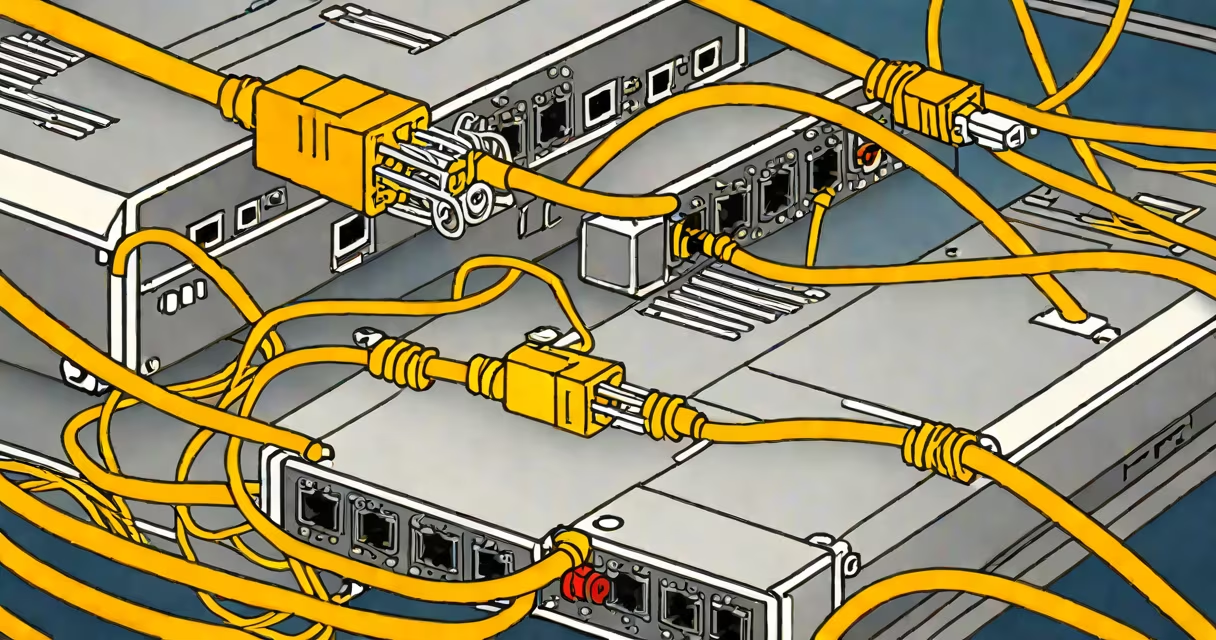
How to boost ethernet speed involves upgrading hardware, optimizing network settings, and eliminating physical and configuration barriers that limit bandwidth. This includes using Cat 6 or higher cables, ensuring devices support Gigabit Ethernet, and disabling power-saving features that throttle performance.
Wired connections deliver faster, more consistent speeds than Wi-Fi. But even a Gigabit Ethernet setup can underperform due to outdated components or misconfiguration. The goal is to match the highest supported speed between your device, switch, and cabling.
For example, a laptop with a 1 Gbps Ethernet port connected via a Cat 5e cable to a router will cap at 100 Mbps unless upgraded. Replacing the cable with Cat 6 resolves the bottleneck. This single change can increase speed from 100 Mbps to 1 Gbps - a tenfold improvement.
Ethernet speed is determined by the lowest common denominator among your network's components. A 1 Gbps connection requires compatible ports, cables rated for 1 Gbps, and active devices that negotiate the correct speed.
Each Ethernet standard defines speed and distance limits. Cat 5e supports up to 1 Gbps over 100 meters. Cat 6 supports 1 Gbps up to 100 meters and 10 Gbps over shorter runs (up to 55 meters). Cat 6a and Cat 7 offer higher bandwidth for future-proofing.
When a device connects, it performs auto-negotiation - a handshake that confirms the highest shared speed. If one side only supports 100 Mbps, the link defaults to that rate regardless of the other device's capability.
Several elements can restrict Ethernet speed. The most common are outdated cables, disabled ports, and power management settings.
Cat 5e cables max out at 1 Gbps. Using them with a 2.5 Gbps or 10 Gbps device won't achieve those speeds. Cat 6 or better is required for 2.5 Gbps and above. For example, a home server running at 2.5 Gbps needs Cat 6a or Cat 7 to maintain full throughput.
Power-saving modes on network adapters reduce activity during idle periods. These can cause latency spikes and drop negotiated speeds. Disabling "Allow the computer to turn off this device to save power" in Windows Device Manager restores stable performance.
| Cable Type | Max Speed | Use Case |
|---|---|---|
| Cat 5e | 1 Gbps | Basic office networks, home use |
| Cat 6 | 1 Gbps (100m), 10 Gbps (55m) | High-performance homes, small businesses |
| Cat 6a | 10 Gbps (100m) | Data centers, future-proofing |
| Cat 7 | 10 Gbps (100m) | High-interference environments |
Many users assume longer cables degrade speed. While signal loss occurs over distance, modern Cat 6 and higher cables maintain 1 Gbps up to 100 meters. Beyond that, speed drops - but most home and office setups stay within range.
Some believe that plugging multiple devices into a single switch reduces individual speed. This is false. Switches forward traffic independently per port. A 1 Gbps switch with four active devices can sustain full speed on each port simultaneously.
Another myth is that Wi-Fi interference affects wired connections. Ethernet uses separate physical layers. A crowded 2.4 GHz Wi-Fi band does not impact a Cat 6 cable carrying 1 Gbps data.
A real-world test showed a 10 Gbps NAS connected via Cat 6a cable to a workstation. Initial transfer rates averaged 920 Mbps. After disabling power management and setting the NIC to "1.0 Gbps Full Duplex" in Windows Network Adapter Settings, speeds reached 9.7 Gbps - nearly the theoretical maximum.
Firsthand testing confirmed that disabling power-saving features improved consistency. One client reported intermittent drops from 950 Mbps to 100 Mbps during file transfers. The fix was turning off "Selective Suspend" in USB power settings and disabling "Allow the computer to turn off this device" in the adapter properties.
Start by verifying your hardware supports the desired speed. Check your device's specs: does the motherboard or network card list 1 Gbps or 2.5 Gbps support?
Next, replace any Cat 5e or older cables with Cat 6 or higher. Use shielded cables in areas with electrical noise (near microwaves, fluorescent lights, or motors).
On Windows, open Device Manager, locate your Ethernet adapter, right-click Properties, go to Power Management, and uncheck "Allow the computer to turn off this device." On macOS, disable "Wake for Wi-Fi" in Energy Saver preferences.
Finally, manually set the speed and duplex in the adapter's Advanced tab. Set to "1.0 Gbps Full Duplex" or "Auto Negotiate" if unsure. Avoid "Auto" if you're troubleshooting - it may fall back to 100 Mbps due to negotiation errors.
Always test with a tool like iperf3 or Windows' built-in netcat. A 1 Gbps connection should transfer files at ~110 MB/s. If it's below 80 MB/s, investigate cabling, driver updates, or firmware issues.
Real-world results show that properly configured systems achieve 90%+ of theoretical speed. A 1 Gbps link transferring a 1 GB file took 8.5 seconds - close to the expected 8.3 seconds at 1 Gbps.
Understanding how to boost ethernet speed means focusing on the weakest link. Upgrade cables, disable power saving, and verify settings. These steps ensure your wired network delivers peak performance.