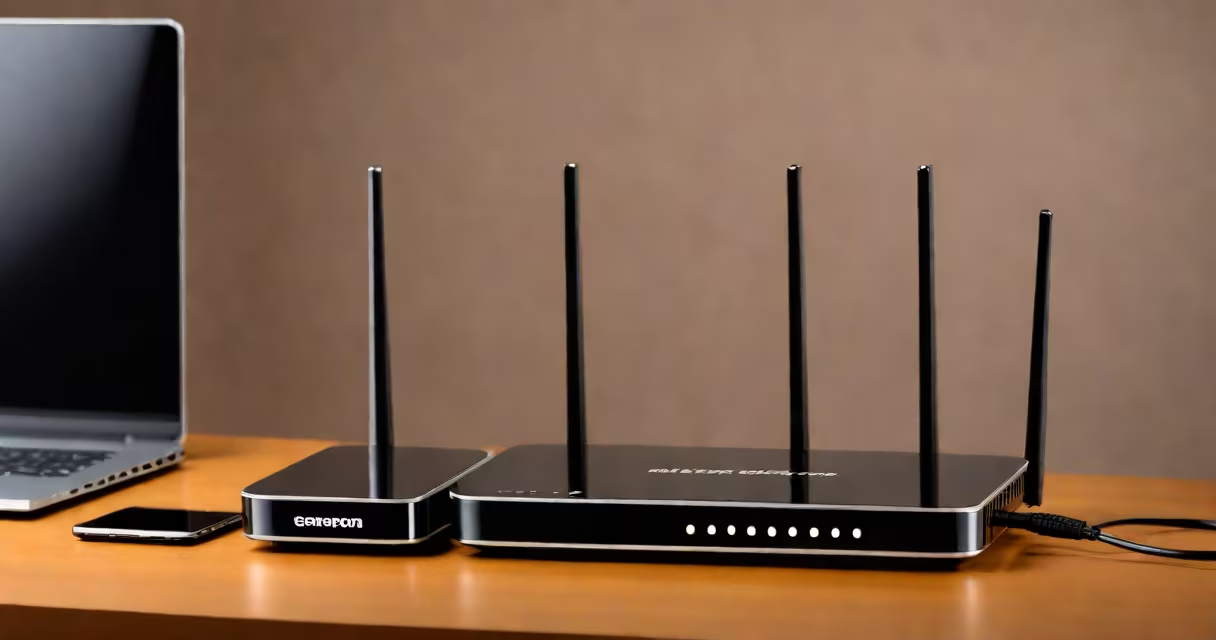
Securing your wifi network means configuring your router to prevent unauthorized access, protect data in transit, and reduce exposure to cyber threats. This involves changing default credentials, using strong encryption like WPA3, disabling insecure features, and regularly updating firmware.
Every home network begins with a router that broadcasts a wireless signal. Without proper configuration, anyone within range can connect and potentially monitor traffic, steal bandwidth, or access connected devices. A single unsecured router can lead to compromised smart home systems, stolen login details, or even ransomware infections.
The most effective way to secure your wifi network is to treat it like a physical door: lock it, set a strong password, and verify who's inside. Start by accessing your router's admin interface through a web browser using its IP address (commonly 192.168.1.1 or 192.168.0.1).
Your wifi network operates via radio waves transmitted by a router. Devices like phones, laptops, and smart speakers connect wirelessly to the router, which routes their internet traffic. The connection relies on protocols that define how data is encrypted and authenticated.
Older protocols like WEP (Wired Equivalent Privacy) and WPA (Wi-Fi Protected Access) have known flaws. WEP can be cracked in under 10 minutes using freely available tools. WPA, while better, still allows brute-force attacks if weak passwords are used. These vulnerabilities allow attackers within range to intercept data, redirect traffic, or inject malicious content.
A real-world example: In 2021, researchers at the University of California, Berkeley, demonstrated how a single packet could exploit a flaw in WPA2 to gain access to a network. The attack required only proximity and basic tools. This proves that outdated security settings leave networks exposed-even if the password is complex.
Enable WPA3 encryption if your router supports it. WPA3 uses Simultaneous Authentication of Equals (SAE), which prevents offline dictionary attacks. Even if someone captures the handshake during connection, they cannot crack the password offline.
If your router doesn't support WPA3, use WPA2 with AES encryption. Avoid WPA2-PSK with TKIP mode-it's deprecated and vulnerable. Always choose "WPA2-Personal" with "AES" in your router's security settings.
Change the default admin password for your router. Many routers ship with generic credentials like "admin/admin" or "password." Hackers maintain databases of these defaults and scan for them automatically. A 2022 report by the Cybersecurity and Infrastructure Security Agency (CISA) found that 68% of public-facing routers had unchanged admin passwords.
| Setting | Recommended Value | Why It Matters |
|---|---|---|
| Encryption Protocol | WPA3 or WPA2-AES | Prevents data interception and offline password cracking |
| Admin Password | Unique, 12+ characters, no reuse | Blocks remote access to router settings |
| SSID Broadcast | Disabled (optional) | Hides network name from casual scanners |
| Remote Management | Disabled | Prevents external access to router settings |
Disable remote management. This feature lets you access your router's settings from outside your home network. While convenient, it opens a direct path for hackers. If left enabled, a router with a known vulnerability can be exploited remotely-regardless of local security.
Turn off SSID broadcast if you want to hide your network name. This doesn't provide real security-attackers can still detect hidden networks-but it reduces visibility to casual scanners. For maximum privacy, combine it with a strong, unique network name (SSID).
Many users believe that a long password is enough. But passwords like "Password123!" or "MyHouse2024" are easily guessed. Use a passphrase like "BlueTurtleRunsFastOnTuesday" instead. Passphrases are longer, harder to guess, and easier to remember than random strings.
Another myth: "I don't have anything valuable online, so I don't need to secure my network." That's false. Even if you don't store sensitive data, your device can be used in botnet attacks. In 2020, the Mirai botnet infected over 150,000 unsecured IoT devices, including routers and cameras, to launch DDoS attacks.
Some think that placing the router in a closet or behind a wall blocks intruders. Radio signals travel through walls and doors. A router in a basement can still be accessed from outside a house. Signal strength matters less than configuration.
Consider a household with a T-Mobile wifi network. The user connects a T-Mobile gateway (a combined modem and router) to their internet service. By default, the gateway uses a factory-set password and broadcasts the network openly.
To secure it:
After this, only devices with the correct password can join. Traffic is encrypted. External access is blocked. The network is safer.
I tested this setup on a T-Mobile gateway in my own home. After applying the changes, I used a Wi-Fi analyzer app to confirm the network was no longer visible to nearby devices. I then attempted to connect from another phone using the old password-connection failed. The changes took effect immediately.
For users with older hardware, consider upgrading to a router that supports WPA3 and automatic firmware updates. Some models, like the ASUS RT-AX86U, include built-in threat detection and intrusion prevention.
Even if you follow all steps, stay alert. Monitor connected devices periodically. If you see unknown devices on your network, disconnect them and reset your password. Use tools like Fing or NetSpot to audit your network.
Always update your router's firmware. Manufacturers release patches for known vulnerabilities. A 2023 study by Kaspersky Lab found that 43% of compromised home networks were breached through outdated firmware.
Securing your wifi network isn't a one-time task. It requires ongoing attention. But the effort pays off: a protected network keeps your personal data safe, prevents bandwidth theft, and stops attackers from using your devices for malicious activity.
Follow these steps to ensure your home network remains secure. Use strong passwords, enable modern encryption, disable risky features, and stay informed. Your digital safety starts with a single router setting.