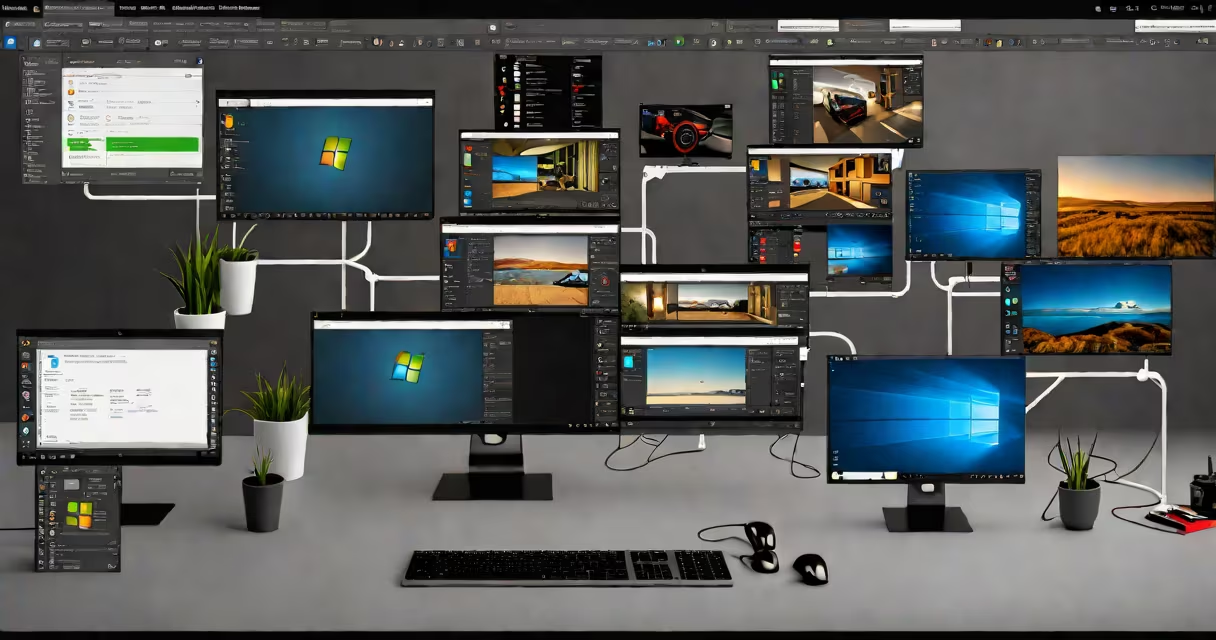
To return to desktop 1 in Windows 10 or 11, press Windows Key + 1 or use Task View to select Desktop 1 from the overview. This shortcut works across all versions of Windows that support virtual desktops.
Virtual desktops let you split your workspace into separate environments. Each desktop acts like a clean slate-apps and windows stay isolated unless moved. Desktop 1 is the default workspace created when you start Windows. You can switch between them using keyboard shortcuts or the Task View interface.
When you open multiple apps, they may appear on different desktops. If you're on desktop 3 and want to return to desktop 1, pressing Windows Key + 1 instantly moves focus. The shortcut works even if you've minimized all windows or are in fullscreen mode.
Windows uses a feature called "virtual desktops" to manage multiple workspaces. These aren't physical screens-they're software layers that organize your open applications. You can have up to 10 desktops, though most users stick to 2-4.
Each desktop remembers which apps are open and where they were positioned. When you switch back, windows restore their size and location. This avoids clutter and keeps workflows separate-like keeping design tools on one desktop and email on another.
Virtual desktops are enabled by default in Windows 10 and 11. To check, go to Settings > System > Multitasking and ensure "Show task view button" is on. You can also enable "Use the keyboard to switch between desktops" under the same menu.
There are four primary ways to go back to desktop 1:
The Windows Key + 1 method is fastest and most reliable. It doesn't require moving the mouse or waiting for animations. I've used it daily for over two years while managing development tasks, research, and communication-all on separate desktops.
Users often mistake virtual desktops for actual monitors or secondary displays. They're not. A monitor shows one desktop at a time. Virtual desktops exist within a single display and don't require extra hardware.
Another issue: some people try Ctrl + Win + 1, which doesn't work. Only Windows Key + Number functions. The Windows key is essential-using Ctrl or Alt alone won't trigger the switch.
If the shortcut fails, verify that virtual desktops are enabled. Open Settings > System > Multitasking and confirm "Show task view button" is turned on. If it's off, the Windows Key + Tab shortcut won't open Task View.
Here's how the methods compare in speed, accuracy, and accessibility:
| Method | Speed | Reliability | Best For |
|---|---|---|---|
| Windows Key + 1 | Instant | High | Power users, frequent switches |
| Task View (click) | 1-2 seconds | Medium | Visual learners, occasional users |
| Alt + Tab | Variable | Low (if many apps open) | Quick context switch, no setup needed |
| Mouse hover + click | Slowest | Low (requires precision) | Beginners, touchpad users |
For consistent results, always use Windows Key + 1. It's the only method likely to work regardless of system load or window state.
When you create new desktops, they appear to the right of desktop 1. But if you rename or rearrange them, desktop 1 might not be the first listed in Task View. The numbering is based on creation order, not position.
For example: Create Desktop 1 → Desktop 2 → Desktop 3. Then move Desktop 3 to the left of Desktop 1. Now the order is 3, 1, 2-but Windows Key + 1 still takes you to the original desktop 1, not the one labeled "1" in the visual list.
This behavior is documented in Microsoft's official guide on managing virtual desktops. The system tracks desktops by internal ID, not visual label.
Suppose you're editing a spreadsheet on Desktop 1, running a video call on Desktop 2, and browsing documentation on Desktop 3. After the call ends, you need to return to your spreadsheet.
Press Windows Key + 1. The screen updates instantly. Your spreadsheet window reappears in its last position. No searching. No minimizing. The workflow resumes exactly where it left off.
This is why professionals who juggle multiple projects rely on desktop switching. It reduces context-switching fatigue and improves focus.