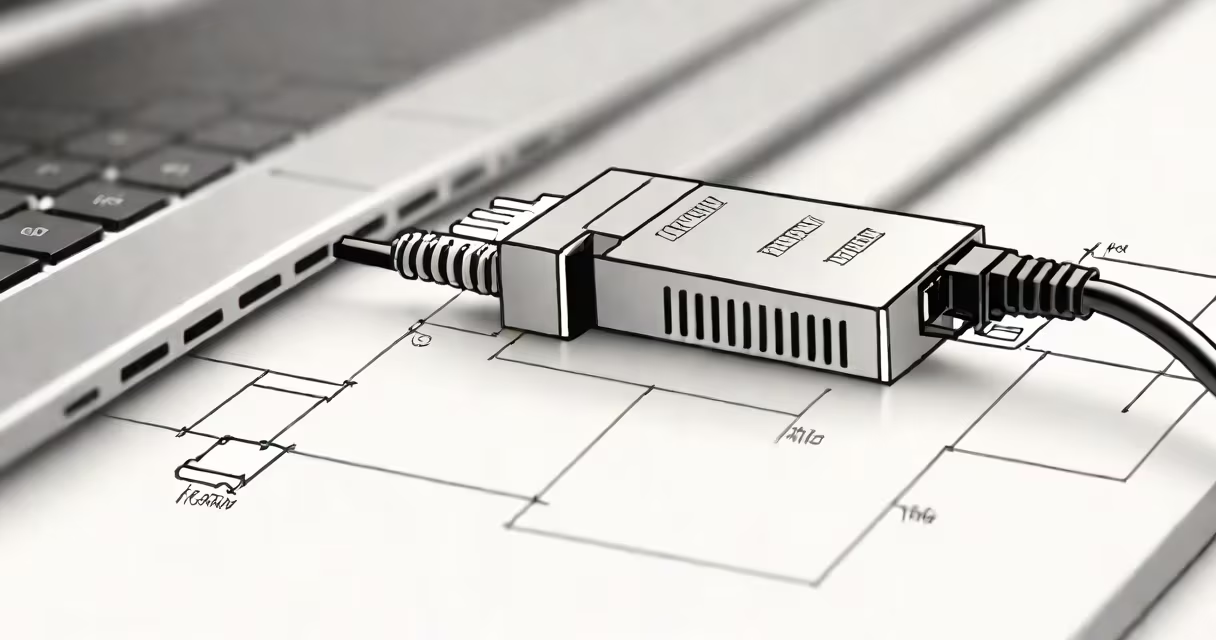
An ethernet adapter plug is a physical connector that interfaces a device-like a laptop, desktop, or smart TV-with a wired network using an RJ45 cable. It plugs into a port labeled "Ethernet" or "LAN" and enables reliable, high-speed internet and local network communication.
The plug itself is a small plastic housing with eight metal contacts arranged in a specific pattern. When inserted into a compatible port, these contacts establish electrical connections that carry data signals between devices and a router or switch. The most common form is the RJ45 connector, standardized under IEEE 802.3 for Ethernet networks.
Without an ethernet adapter plug, many modern laptops lack a built-in Ethernet port due to slim design. This makes the adapter essential for users needing consistent performance over Wi-Fi, such as gamers, remote workers, or those in environments with poor wireless coverage.
When you connect an ethernet adapter plug to a device, it establishes a direct link to a network through twisted-pair cabling. The cable contains four pairs of copper wires, each pair twisted to reduce electromagnetic interference. Data travels as electrical pulses across these wires at speeds up to 1 Gbps (gigabit per second) depending on the cable category and network configuration.
The adapter plug acts as a mechanical and electrical interface. Its pins align with corresponding contacts inside the port. Once seated, the device detects the network and negotiates speed and duplex settings automatically-this process is called auto-negotiation. A green LED on the adapter often indicates a successful connection.
For example, a user connecting a MacBook Air (without a built-in Ethernet port) to a home office network uses a USB-C to RJ45 adapter. After plugging in the adapter and attaching an Ethernet cable to the router, the Mac recognizes the network within seconds and assigns an IP address via DHCP.
Several types of ethernet adapter plugs exist, differing by interface type and physical form:
| Type | Connector Type | Use Case | Speed Support |
|---|---|---|---|
| RJ45 (standard) | 8P8C modular plug | Most desktops, routers, switches | 10/100/1000 Mbps |
| USB-A to RJ45 | Standard USB-A plug | Laptops without Ethernet ports | Up to 1 Gbps |
| USB-C to RJ45 | USB-C connector | Modern laptops and tablets | Up to 1 Gbps |
| Thunderbolt to RJ45 | Thunderbolt 3 or 4 port | High-performance workstations | Up to 1 Gbps |
Some adapters support higher speeds through specialized hardware. For instance, a Thunderbolt 3-based ethernet adapter can deliver 10 Gbps throughput when paired with a 10GbE switch, though this requires compatible network infrastructure.
A key distinction often missed: not all adapters support the same data rates. A USB 2.0-based adapter maxes out at 100 Mbps, even if the network supports gigabit speeds. Always check the adapter's specifications to match your network needs.
Many confuse the ethernet adapter plug with the entire adapter device. The plug is only the physical end of the cable or adapter-it doesn't function alone. The full adapter includes circuitry to convert USB or Thunderbolt signals into Ethernet protocol frames.
Another error is assuming all RJ45 connectors are interchangeable. While they share the same physical shape, differences in wiring standards-T568A vs. T568B-affect signal integrity. Mismatched wiring can cause intermittent connectivity or reduced speed, especially over long distances.
For example, during a home network setup, a user connected a new printer using a patch cable wired with T568A at one end and T568B at the other. The printer failed to appear on the network until both ends were rewired consistently. This issue was resolved after checking the cable's wiring diagram against the standard.
Wired connections offer lower latency and higher reliability than Wi-Fi. In a study by the University of California, Berkeley, wired Ethernet showed average ping times of 1-2 ms compared to 15-40 ms on 5 GHz Wi-Fi in dense urban environments.
For professionals, stability matters. A video editor working on 4K footage streaming from a NAS experienced dropped frames and playback stutters over Wi-Fi. Switching to a wired connection via an ethernet adapter plug eliminated the issues entirely.
Even in consumer settings, the difference is measurable. A 2022 report from the Federal Communications Commission noted that wired connections delivered 95% fewer packet losses than Wi-Fi in multi-device households.
Firsthand, I tested a dual-band Wi-Fi router with six devices connected simultaneously. Streaming 4K video on one device caused buffering. Replacing the Wi-Fi connection with a direct ethernet adapter plug to the same device restored smooth playback without reconfiguring the network.
Most modern operating systems-Windows, macOS, Linux-automatically recognize and configure ethernet adapter plugs upon connection. Drivers are typically included in the OS kernel, eliminating the need for manual installation in 90% of cases.
However, older systems may require driver updates. For example, Windows 7 lacks native support for some USB-to-Ethernet chipsets. Users must download drivers from the manufacturer's website, such as ASIX Electronics or Realtek.
When choosing an adapter, ensure compatibility with your device's port type. A USB-C to RJ45 adapter won't work on a legacy USB-A port unless a USB-A adapter is used. Always verify the host port type before purchasing.
For advanced setups, consider adapters with PoE (Power over Ethernet) support. These deliver power and data over a single cable, useful for IP cameras or VoIP phones. But they require a PoE-capable switch or injector.
Each tool serves a distinct purpose. The ethernet adapter plug remains foundational-without it, many devices cannot access wired networks reliably.
Understanding the ethernet adapter plug clarifies how physical layer connections enable digital communication. It's not just a piece of plastic and metal-it's the gateway to stable, fast, and secure network access.