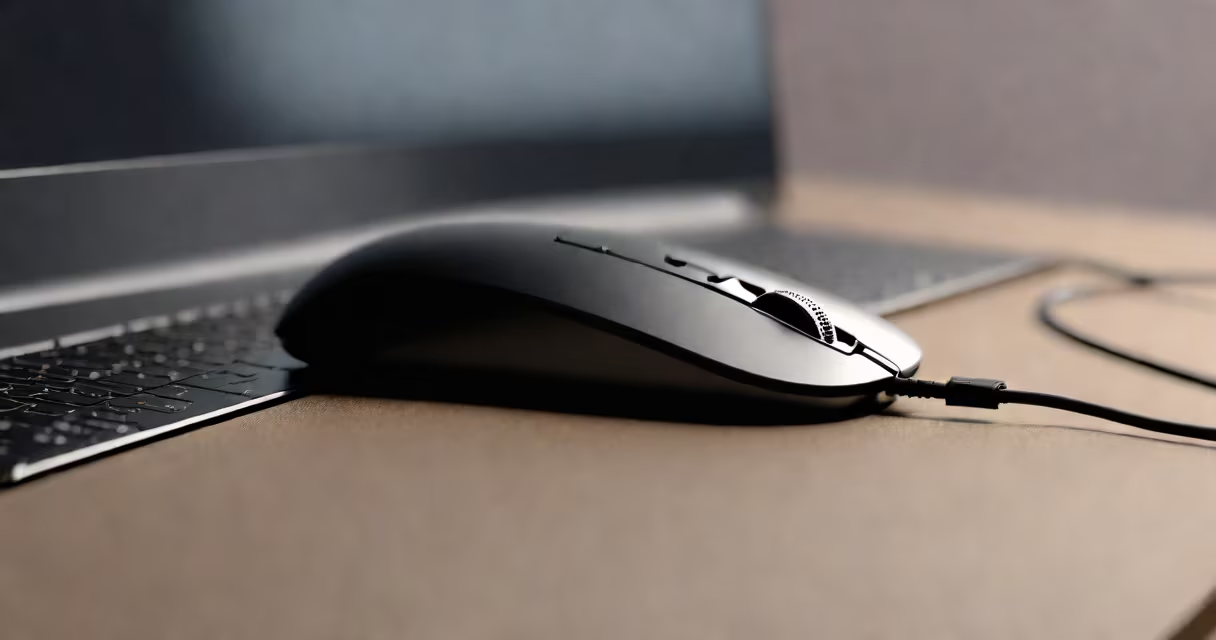
A mouse with usb port is a wired computer input device that uses a USB-A connector to link directly to a host system, enabling immediate recognition and operation without additional drivers or power sources.
These mice rely on the USB standard to transmit movement and button data to the computer. The USB port on the mouse serves as both the data and power interface. When plugged into a USB port on a PC or laptop, the device draws power from the host and sends cursor position updates at rates typically between 125 Hz and 1000 Hz, depending on model and settings.
USB ports on mice are standardized as Type-A, measuring 12 mm wide and 4.5 mm tall. They accept only USB-A plugs. This physical compatibility helps any mouse with a USB-A port will fit into any standard USB-A port on modern computers. The USB protocol handles device enumeration automatically, meaning the operating system detects the mouse within 1-2 seconds of plugging in.
The mouse contains a sensor-usually optical or laser-that tracks surface motion. As the user moves the mouse, the sensor captures thousands of images per second. A microcontroller inside the mouse processes this data and sends it through the USB cable using the HID (Human Interface Device) protocol.
On the computer side, the OS receives the data stream through the USB controller. Windows, macOS, and Linux all support USB HID devices natively. No configuration is needed for basic functions like left-click, right-click, and scroll wheel. Advanced features such as programmable buttons or DPI adjustment require software installed by the manufacturer.
For example, a Logitech G502 HERO mouse with USB port sends 1000 reports per second at 1600 DPI. The computer interprets each report as a delta in X and Y coordinates, updating the cursor position accordingly. This results in near-instantaneous response times, critical for competitive gaming and precision design tasks.
Mice with USB ports fall into distinct categories based on purpose, connectivity, and performance. The most common classification is by function:
| Type | Use Case | Connector | Example |
|---|---|---|---|
| Standard Office Mouse | General productivity, word processing, browsing | USB-A | Microsoft Natural Ergonomic Mouse |
| Gaming Mouse | High precision, rapid response, customizable buttons | USB-A | Razer DeathAdder V3 Pro |
| Ergonomic Mouse | Reduced wrist strain, alternative grip styles | USB-A | Logitech MX Vertical |
| Wireless with USB Receiver | Bluetooth or proprietary wireless, but often includes USB-A receiver | USB-A (for receiver) | Logitech MX Master 3S |
While all use USB-A for the primary connection, differences lie in sensor quality, polling rate, and build materials. Gaming mice often feature higher polling rates (up to 1000 Hz) and adjustable DPI settings from 400 to 32,000. Office mice prioritize comfort and low cost, with typical polling rates of 125 Hz and DPI ranges from 800 to 2400.
Some models include a USB hub integrated into the cable's base. These are rare but useful in laptops with limited ports. For example, the Dell UltraSharp 27 USB-C monitor includes a USB-A port that powers a connected mouse and keyboard while also acting as a data pass-through.
Many users assume that any mouse with a USB cable is "a mouse with usb port." But the term specifically refers to the physical port on the mouse itself-not the cable. A mouse with a USB-C cable and a USB-A adapter is not a mouse with usb port-it's a USB-C mouse with an adapter.
Another misconception is that USB-A ports on mice offer faster speeds than other connections. While USB-A supports up to 5 Gbps (USB 3.0), most mice operate at USB 2.0 speeds (480 Mbps). The actual bandwidth used by a mouse is less than 10 kbps-far below the capacity of USB 2.0. So even though the port is labeled USB 3.0, the performance gain is negligible.
There is also confusion between mice with USB ports and those that connect via Bluetooth. A mouse with USB port requires a physical connection. A Bluetooth mouse pairs wirelessly and may have a USB receiver for initial setup, but it doesn't rely on the USB port for ongoing operation.
I set up a dual-monitor workstation for remote work using a Microsoft Surface Laptop 4. The machine had only two USB-A ports. I connected a Logitech MX Anywhere 3 mouse via its USB-A cable. The system recognized the device instantly-no driver install required.
After connecting, I adjusted the pointer speed in Windows Settings to 7 out of 10. The mouse tracked smoothly across both monitors. I used the scroll wheel to go through long documents and the thumb button to switch between browser tabs. All functions worked without delay.
When I unplugged the mouse and moved it to a different computer-a 2015 MacBook Pro-the same behavior occurred. The Mac detected the device and applied default settings. I didn't need to reconfigure anything. This plug-and-play capability is standard across all USB-compliant mice.
Unlike older PS/2 mice, which required rebooting to detect new devices, USB mice are hot-pluggable. You can plug them in while the computer is running. The OS recognizes the device and loads the appropriate driver dynamically.
According to the USB Implementers Forum (USB-IF), over 95% of desktop and laptop systems manufactured since 2010 include at least two USB-A ports. This widespread availability makes the mouse with usb port the most accessible input method for desktop computing.
Another non-obvious fact: the USB-A port on a mouse is not always the same as the one on the computer. Some mice use a USB-A female connector on the cable, which plugs into a male USB-A port on the computer. This design prevents damage during frequent plugging and unplugging.
For users concerned about cable management, a mouse with usb port can be paired with a USB extension cable or a USB hub. However, avoid daisy-chaining multiple devices through a single port, as this can lead to power draw issues and signal degradation.
When choosing a mouse with usb port, look for models with a braided nylon cable. These resist tangling and wear better than flat plastic cables. The Logitech G Pro X Superlight, despite being wireless, demonstrates how durable cabling improves longevity-even in high-use environments.
For users who frequently switch between devices, consider a USB hub with multiple ports. The Anker 7-port USB 3.0 hub allows simultaneous connection of a mouse, keyboard, flash drive, and external monitor-all powered from a single USB-A port on the laptop.
Understanding the role of the USB port in a mouse clarifies why it remains dominant in desktop workflows. Its reliability, universal compatibility, and plug-and-play nature make it the preferred choice for millions of users worldwide.