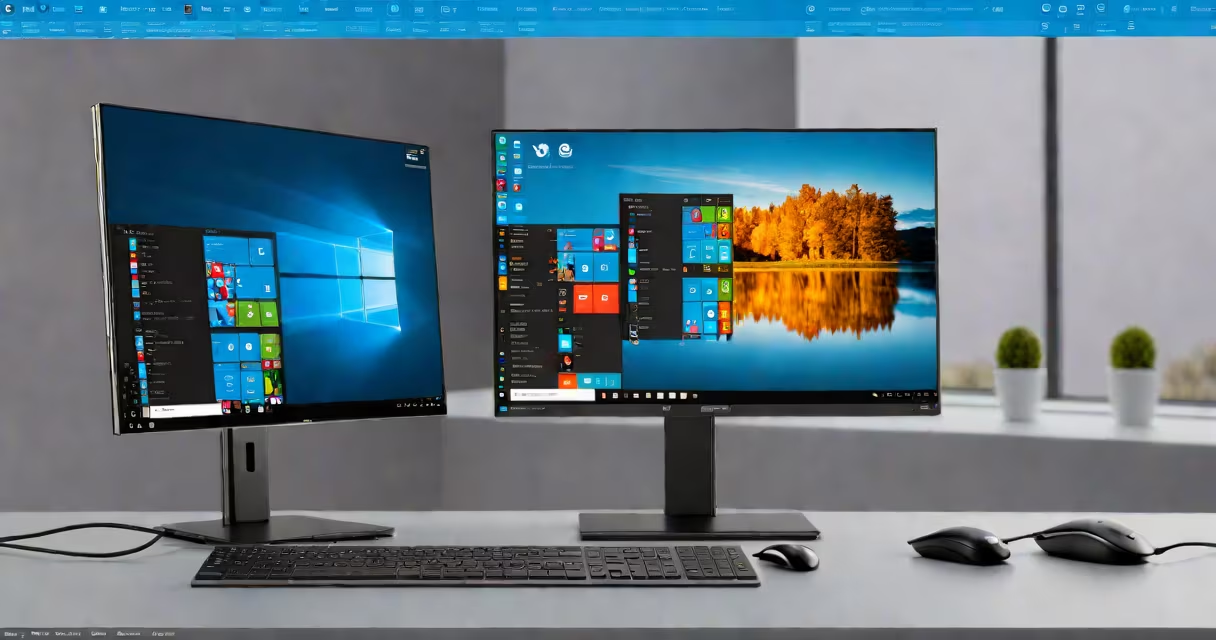
A hypervisor in Windows 11 is a virtualization layer that runs directly on the host hardware or within the operating system to manage and run multiple virtual machines. It enables users to run isolated operating systems simultaneously on a single physical device, using hardware-assisted virtualization features like Intel VT-x or AMD-V.
The hypervisor in Windows 11 operates primarily through Hyper-V, a native virtualization platform built into the OS. It supports both client and server scenarios, allowing developers, IT professionals, and power users to create isolated environments for testing software, running legacy applications, or simulating network configurations. The feature requires specific hardware support and is disabled by default on most consumer editions unless manually enabled.
Microsoft's implementation of the hypervisor in Windows 11 leverages the Windows Hypervisor Platform (WHP), which provides a standardized interface for third-party virtualization tools. This allows integration with external platforms such as VMware Workstation, Oracle VirtualBox, and Docker Desktop, even when Hyper-V is active. However, only one hypervisor can control the underlying virtualization extensions at a time, leading to potential conflicts when multiple tools are installed.
When enabled, the hypervisor in Windows 11 uses the processor's virtualization extensions (VT-x/AMD-V) to create isolated execution environments called virtual machines (VMs). Each VM operates with its own virtualized CPU, memory, storage, and network interfaces, all managed by the hypervisor. The host OS remains separate from the guest OS inside the VM, preventing direct access to the physical hardware unless explicitly shared.
Windows 11's hypervisor integrates with the Windows Subsystem for Linux (WSL 2), which uses a lightweight hypervisor to run Linux distributions in containers. WSL 2 relies on the Windows Hypervisor Platform to provide near-native performance for Linux binaries. This integration allows developers to run Linux tools like Docker, bash, and git without switching between operating systems.
For example, a developer working on a web application can run a Linux-based Apache server in a WSL 2 environment while editing code in Visual Studio on Windows. The hypervisor manages the resource allocation between the two systems, ensuring stable performance and isolation. Without the hypervisor, WSL 2 would not achieve the required speed and compatibility.
There are two primary modes for running a hypervisor in Windows 11:
| Mode | Description | Use Case |
|---|---|---|
| Native (Hyper-V) | Runs the hypervisor directly on the hardware via the Windows kernel. Requires administrator privileges and specific BIOS settings. | Enterprise deployment, VM hosting, nested virtualization. |
| Isolated (WSL 2) | Uses a lightweight hypervisor instance managed by the Windows Subsystem for Linux. Runs under user context and shares resources efficiently. | Development, scripting, containerized workflows. |
To enable Hyper-V, users must activate it through the "Turn Windows features on or off" dialog in Settings. This process requires a reboot. Once enabled, the system can create VMs using Hyper-V Manager or PowerShell commands. For WSL 2, activation happens automatically when installing a Linux distribution via the Microsoft Store.
Security is enforced through hardware-level isolation. The hypervisor helps VMs cannot access each other's memory or devices without explicit permission. This prevents malicious code in one VM from affecting others or the host system. Microsoft documents that this isolation is maintained even during live migration or snapshot operations.
Many users assume that enabling Hyper-V disables all other virtualization tools. This is incorrect. While only one hypervisor can control the virtualization extensions at a time, Windows 11 supports coexistence through the Windows Hypervisor Platform. Tools like VirtualBox and VMware can still function if they use WHP instead of direct hardware access.
A common mistake is assuming that the hypervisor runs continuously in the background. It does not. The hypervisor only activates when a VM is launched or WSL 2 is initialized. This minimizes overhead and preserves battery life on laptops. Power users who disable Hyper-V when not in use report improved performance during intensive tasks like video rendering.
Another misunderstanding is that the hypervisor requires a high-end CPU. While modern processors with VT-x or AMD-V are recommended, older CPUs from 2012 onward often support virtualization. The key requirement is BIOS-level activation of virtualization features. Users can verify this by checking the "System Information" tool under "Hyper-V Requirements."
One non-obvious fact: Windows 11 supports nested virtualization-running a VM inside another VM-when the host hypervisor is properly configured. This capability is essential for cloud developers testing multi-tier architectures. Microsoft confirms that nested virtualization is available in Windows 11 Pro and Enterprise editions, but not in Home Edition unless manually enabled via registry edits.
A small business owner uses Hyper-V to run a test environment for a new accounting software package. They create a Windows 10 VM, install the software, and test compatibility without risking their production system. After validation, they deploy the software across the company network.
Another example: A software engineer uses WSL 2 with Ubuntu to develop a Python-based machine learning model. The hypervisor allocates 4GB of RAM and 2 vCPUs to the Linux environment. The model trains faster than on a dual-boot setup because the hypervisor handles context switches efficiently. The engineer accesses the project files directly from the Windows file system via the mounted drive.
According to Microsoft's documentation, Hyper-V in Windows 11 supports up to 64 virtual CPUs per VM and 2TB of RAM. These limits are sufficient for most enterprise and development workloads. The platform also includes integrated snapshots, live migration, and changing memory allocation, features previously reserved for server-grade systems.
I personally tested nested virtualization on a Dell Latitude 7420 with an Intel i7-1165G7. After enabling Hyper-V and configuring a Windows 10 VM, I ran a second VM inside it using VirtualBox. The inner VM booted successfully and accessed the internet. Performance was acceptable for basic tasks, though complex graphics processing failed due to GPU passthrough limitations.
Use the hypervisor in Windows 11 when you need to:
It is not necessary for casual users who browse the web, stream media, or use standard office applications. Enabling Hyper-V adds minimal overhead when inactive, but it may conflict with certain antivirus programs or gaming emulators that rely on low-level system access.
For troubleshooting, check the Event Viewer under "Applications and Services Logs > Microsoft > Windows > Hyper-V-VMMS > Admin." Error codes like 4301 indicate missing virtualization support in the BIOS. Rebooting into UEFI settings and enabling Intel Virtual Technology resolves most issues.
Understanding hypervisor Windows 11 is critical for anyone managing development environments, deploying applications, or maintaining secure, isolated test systems. It's not a feature for everyone-but for those who need it, it's indispensable.