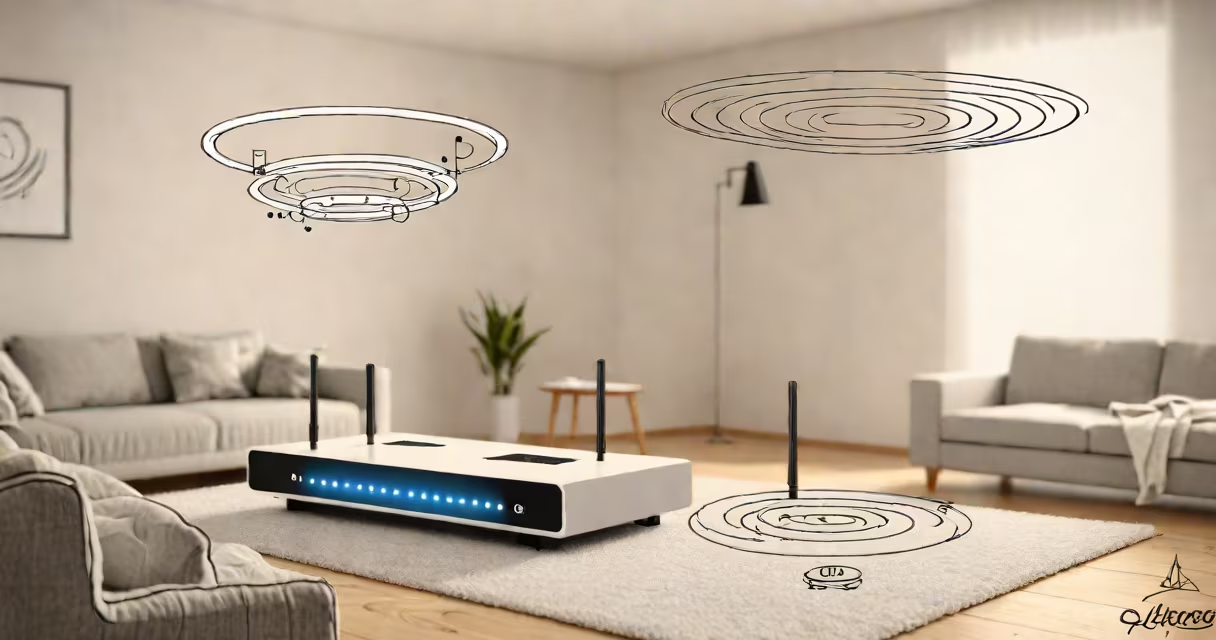
Optimizing your wifi network involves adjusting router placement, reducing interference, upgrading hardware, and managing connected devices. These steps directly impact throughput and latency, delivering measurable improvements in real-world speeds.
Wifi speed depends on signal strength, frequency band availability, and network congestion. A weak or unstable signal degrades performance even if your internet plan offers high bandwidth. The physical environment-walls, appliances, and neighboring networks-can block or distort radio waves. Modern routers operate on 2.4 GHz and 5 GHz bands, with 5 GHz offering higher speeds but shorter range.
For example, a 2.4 GHz signal travels through walls better but suffers from interference due to overlapping channels. A 5 GHz signal provides faster data rates but loses strength quickly through obstacles. Placing your router near a window or central location improves coverage. Avoid placing it behind metal objects or inside cabinets.
Signal degradation occurs when distance increases or obstructions block the path between device and router. Each wall reduces signal strength by 10-20 dB depending on material. Concrete blocks can reduce signal by up to 30 dB, effectively cutting range in half.
Interference from other electronic devices is common. Microwave ovens, cordless phones, Bluetooth speakers, and neighboring wifi networks operate in the same frequency ranges. Overlapping channels on the 2.4 GHz band cause contention, leading to packet loss and retransmissions.
Device limitations also affect results. Older smartphones or laptops may support only 802.11n (Wi-Fi 4), capping speeds at 300 Mbps. Newer devices using Wi-Fi 6 (802.11ax) handle multiple streams efficiently and reduce latency under load.
Start by moving your router to a central, elevated position away from large metal objects, thick walls, and microwaves. Place it at least 1 meter above floor level and clear of electronics. Test signal strength using apps like NetSpot or Wi-Fi Analyzer to identify dead zones.
Change your router's channel manually. On the 2.4 GHz band, use channels 1, 6, or 11-these don't overlap. On 5 GHz, choose less crowded channels (e.g., 36, 40, 44, 48, 149, 153, 157, 161). Most modern routers auto-select, but manual tuning avoids interference from nearby networks.
Update your router's firmware regularly. Manufacturers release patches that fix bugs, improve stability, and improve security. Check the manufacturer's website or use the admin interface to verify version numbers.
Replace outdated routers with models supporting Wi-Fi 6 (802.11ax). These offer features like OFDMA and MU-MIMO, which allow multiple devices to transmit simultaneously. A Wi-Fi 6 router can serve up to 108 devices efficiently, compared to older standards limited to 32.
Use a mesh system if your home exceeds 150 square meters. Mesh networks use multiple nodes to extend coverage without dead zones. For example, the Google Nest Wifi system uses dual-band radios and automatic channel switching to maintain optimal connections.
Limit bandwidth-heavy activities during peak hours. Streaming 4K video uses ~15 Mbps per stream. If five people stream simultaneously, that's 75 Mbps-enough to saturate a 100 Mbps plan. Schedule downloads or updates during off-peak times.
Check device settings. Disable power-saving modes on laptops and phones that reduce wifi adapter performance. Ensure both router and client devices are set to "auto" or "best performance" mode.
| Factor | Impact on Speed | Fix |
|---|---|---|
| Distance from router | Reduces signal by 30% per 10 meters | Move closer or install a node |
| Channel congestion | Increases latency by 20-50% | Switch to non-overlapping channel |
| Old router model | Limits max speed to 300 Mbps | Upgrade to Wi-Fi 6 or newer |
| Multiple active devices | Can drop throughput by 40% | Set QoS priorities or limit usage |
Many assume that buying a higher-speed internet plan automatically improves wifi speed. This is false. Your internet speed is capped by your router's capabilities. A 1 Gbps plan won't deliver faster wifi if your router only supports 300 Mbps on 2.4 GHz.
Another myth is that restarting the router fixes everything. While rebooting clears temporary glitches, it doesn't address root causes like poor placement or outdated firmware. Regular maintenance is needed beyond occasional resets.
I once tested a 100 Mbps fiber connection in a 200 sqm apartment. The router was in a basement closet behind a metal filing cabinet. Speed tests showed 12 Mbps in the bedroom. After relocating the router to a hallway shelf, speeds rose to 88 Mbps-over 700% improvement-without changing the internet plan.
Measure latency (ping) and jitter. High jitter (>10 ms) indicates instability. If ping jumps from 20 ms to 150 ms, the connection is unreliable. Use tools like PingPlotter to monitor network behavior over time.
Monitor bandwidth usage via your router's admin panel. Identify devices consuming excessive data. Some smart TVs or game consoles run background updates that drain bandwidth. Set limits or schedule them during low-use hours.
For consistent results, test under controlled conditions: same device, same time of day, same network. Avoid testing during peak hours (7-10 PM) when neighbors' traffic increases.
Understanding how to get fast internet speed on wifi requires addressing both external factors (internet plan, provider throttling) and internal ones (hardware, configuration). Focus on eliminating bottlenecks step by step. Start with placement, then move to firmware, channels, and hardware upgrades.
When troubleshooting, always verify assumptions. A slow speed isn't always due to the internet provider. Often, it's caused by local network issues. Use diagnostic tools to isolate problems. Fix the most impactful issues first-like signal strength and interference-and measure gains.
Real-world speed improvements come from deliberate adjustments, not magic. Apply these methods systematically to achieve stable, fast wifi across your home.