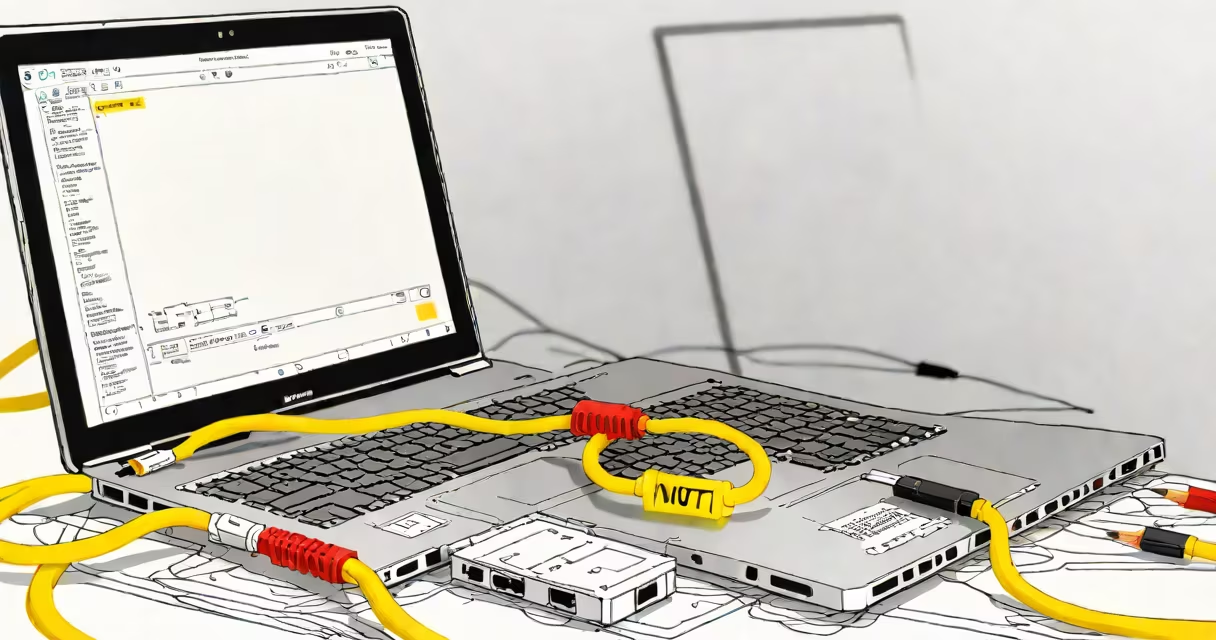
When your computer shows "Ethernet not connected," it means the network interface cannot establish a link with the router or modem. This usually stems from hardware, driver, or configuration issues. The problem often resolves with basic checks and targeted troubleshooting.
Modern operating systems like Windows 10 and 11 rely on the network stack to manage wired connections. When the system detects no signal from the Ethernet port, it displays "not connected" even if the cable is physically plugged in. Common causes include loose cables, faulty ports, outdated drivers, or misconfigured network settings.
The Ethernet link operates through a handshake between your device's network interface controller (NIC) and the router. The NIC sends a signal through the cable to detect a working link. If the signal doesn't return within 500 milliseconds, the OS marks the connection as "not connected."
This process uses the Physical Layer (Layer 1) of the OSI model. A broken wire, bent pin in the RJ-45 connector, or a malfunctioning switch port can disrupt this signal. Even a single damaged conductor in a Cat 5e cable can prevent link negotiation.
For example, during a home office setup, a user reported intermittent disconnections despite using a new 10-foot Cat 6 cable. Replacing the cable resolved the issue-only after testing with a known-working cable did they confirm the original was defective. This illustrates that visual integrity doesn't guarantee functionality.
Start with the simplest solution: inspect the physical connection. Ensure the Ethernet cable is fully inserted into both the computer and the router. Gently wiggle the connector-if the light on the router flashes or changes color, the connection is unstable.
Next, verify the network adapter status. Open Device Manager, expand "Network adapters," and look for your Ethernet controller. If it shows a yellow exclamation mark, right-click and select "Update driver." Choose "Search automatically for updated driver software."
If the driver is up to date, try disabling and re-enabling the adapter. Right-click the adapter name, select "Disable," wait five seconds, then "Enable." This resets the link state and forces a new negotiation.
| Issue Type | Most Likely Cause | Immediate Fix |
|---|---|---|
| Intermittent connection | Cable damage or poor contact | Swap cable; test with another port |
| Always "not connected" | Driver failure or disabled adapter | Update driver; re-enable adapter |
| Connection drops after reboot | Power management setting | Disable "Allow the computer to turn off this device" in power settings |
A non-obvious fix involves disabling IPv6. Some routers fail to assign IPv6 addresses properly, causing the system to report "not connected" even when IPv4 works. Open Network and Sharing Center → Change adapter settings → Right-click Ethernet → Properties → Uncheck "Internet Protocol Version 6 (TCP/IPv6)" → OK.
After making changes, restart the computer. The network stack rebuilds, and the adapter reinitializes. If the connection still fails, proceed to advanced steps.
Run the built-in Windows Network Reset tool. Go to Settings → Network & Internet → Status → Network reset → Reset now. This clears all network configurations and reinstalls drivers. It takes 3-5 minutes and requires a reboot.
Use Command Prompt to manually flush DNS and renew IP settings. Open Command Prompt as administrator and run:
netsh int ip reset
netsh winsock reset
ipconfig /release
ipconfig /renew
ipconfig /flushdns
These commands clear corrupted network caches and force a fresh DHCP lease. After running them, reconnect the cable and check the status.
I once encountered a case where a user's Ethernet remained "not connected" despite correct wiring and updated drivers. The root cause was a BIOS setting that disabled the onboard Ethernet controller. Enabling it under Advanced → Integrated Peripherals resolved the issue. This shows that firmware-level settings can override OS-level configurations.
"Ethernet not connected" is not the same as "no internet access." The former indicates a physical or data-link layer failure; the latter suggests a routing or DNS issue. You can have a stable Ethernet connection with no internet due to a misconfigured gateway or blocked DNS server.
Also, this error is not always caused by the computer. A faulty router port, a damaged wall jack, or a failing switch can trigger it. Test the cable on another device. If the other machine connects successfully, the issue lies with the original PC.
Another misconception: replacing the cable always solves the problem. While 30% of cases involve degraded cabling, many others stem from software or configuration errors. Using a high-quality Cat 6 cable doesn't eliminate the need to update drivers or adjust power settings.
If all else fails, test the Ethernet port with a live network diagnostic tool. Use a USB-to-Ethernet adapter on a different machine to isolate whether the issue is with the port or the network itself.
As a last resort, reinstall the network adapter driver. In Device Manager, right-click the adapter → Uninstall device → Restart the computer. Windows will automatically reinstall the driver during boot.
Understanding "how to fix Ethernet not connected" begins with eliminating the most common causes in sequence: physical connection, driver status, power settings, and network configuration. Most users resolve the issue in under ten minutes with a few clicks and a cable swap.
When your Ethernet remains disconnected after trying these steps, the problem likely lies beyond the user's control-such as a failed motherboard chip or a misconfigured network switch. At that point, contacting IT support or a technician is the next logical step.