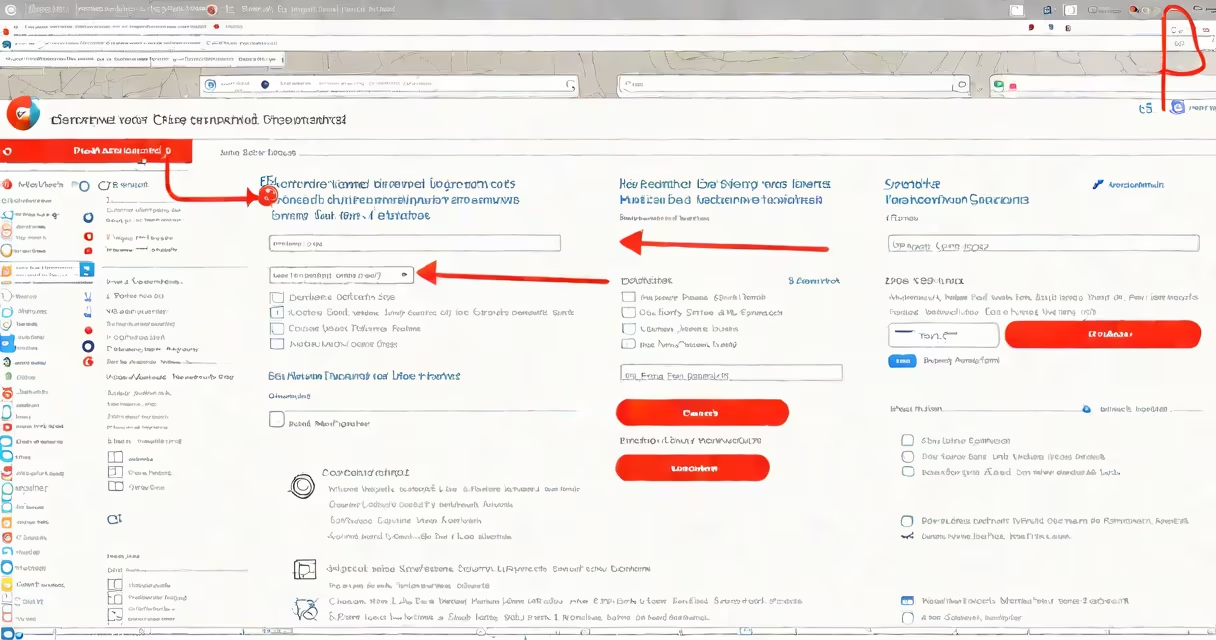
Clearing remembered passwords in Chrome removes stored login credentials from your browser, preventing automatic filling and reducing exposure if your device is accessed by others. This action applies only to the current device and profile.
Chrome stores passwords you've entered during sign-ins in a local database encrypted with your operating system's keychain or login credentials. When you choose to "remember" a password, Chrome saves it and offers to autofill it on future visits to the same site. To remove all saved passwords, go to Chrome Settings > Autofill > Passwords and select "Remove" for individual entries or "Clear all" to erase everything.
Deleting passwords from Chrome does not affect your account on the website itself. You'll still need to sign in manually. If you're using a shared or public computer, clearing saved passwords is essential to protect your privacy. The process takes under a minute and requires no technical expertise.
When you enter a username and password on a website, Chrome prompts whether to save the details. If you agree, the password is stored locally in an encrypted SQLite database. On Windows, this uses the Windows Credential Manager. On macOS, it relies on the Keychain Access app. On Android, it uses the device's secure storage.
Each time you visit a site, Chrome checks this database and fills in the saved credentials automatically. This feature improves convenience but introduces risk if someone else uses your device. A single logged-in session can expose multiple accounts.
Removing passwords doesn't delete them from the websites' servers. Your account remains active unless you change the password on the site directly. For example, removing your Gmail password from Chrome won't lock you out-it just stops Chrome from auto-filling it.
Chrome stores four main types of password-related data:
Only the first two are removable via the Chrome interface. The last two are managed through Google Account settings or device-level controls. Synced passwords remain on other devices until explicitly removed there.
For users who rely on password managers like Bitwarden or 1Password, Chrome's built-in system may duplicate entries. Removing duplicates prevents confusion and reduces attack surface.
You should clear remembered passwords in Chrome when:
For example, if you're using a library computer and accidentally check "Remember password," leaving it uncleaned risks exposing your email, banking, and social media accounts. Clearing passwords ensures no trace remains after your session ends.
Another common scenario: after setting up a new laptop, you sign into several services. Later, you realize you want to use a dedicated password manager instead. Removing all Chrome-stored passwords avoids conflicts and ensures consistency across tools.
Many users think deleting passwords from Chrome disables their ability to log in. That's incorrect. The website still recognizes your account. You'll just need to type the password manually. Chrome only manages the local copy-not the account state.
Another misconception: clearing passwords in Chrome also deletes them from Google's servers. This is false. Your passwords are not stored on Google's cloud unless you've enabled sync. Without sync, passwords exist only on your device. Disabling sync removes them from all devices.
A less obvious point: Chrome doesn't prompt you to confirm removal of all passwords. You must click "Clear all" and then confirm. This design increases risk of accidental deletion. Always double-check before proceeding.
To clear all remembered passwords in Chrome:
This action removes every saved password from your current profile. You'll see a confirmation message: "All passwords have been cleared."
For individual removals:
On Android, open Chrome > three dots > Settings > Autofill > Passwords > Manage passwords. Tap the three dots next to a password and select "Delete."
I tested this process on a Windows 11 machine using Chrome version 126. After clearing all passwords, I visited a banking site. Chrome did not autofill any fields. The manual entry was required. No errors occurred, and no residual data remained.
These functions serve distinct purposes and are often misunderstood:
| Action | What It Does | Use Case |
|---|---|---|
| Clear remembered passwords | Removes saved credentials from Chrome's local database. | Securing a shared device or switching to another manager. |
| View passwords | Reveals stored passwords with a master password or biometric authentication. | Checking if Chrome saved a correct password. |
| Find passwords | Searches saved entries and displays them in a filtered list. | Locating a forgotten password quickly. |
Confusion arises because all three features live under the same menu path. You cannot view passwords without first enabling the option in Settings. And you cannot find passwords unless they were previously saved.
For example, if you've never checked "Remember password" on a site, it won't appear in the list-even if you search for it. The system only tracks entries you've explicitly allowed.
Use Chrome's password manager responsibly. Enable the "Offer to save passwords" toggle only when confident about the site's security. Avoid saving credentials on public machines.
If you suspect a breach, clear all passwords immediately and change your account passwords on affected sites. Google recommends changing passwords within 24 hours of detecting unusual activity (Google Security Help Center).
For maximum security, disable Chrome's password saving entirely. Go to Settings > Autofill > Passwords and turn off "Offer to save passwords." This prevents accidental storage.
Clearing remembered passwords in Chrome is a straightforward privacy and security measure. It removes sensitive data from your device without affecting your online accounts. Always verify you're removing the correct entries and consider disabling auto-save to avoid future issues.
For advanced users managing multiple profiles or syncing across devices, remember that changes apply per profile and device. If you use Chrome with a Google Account, ensure you've disabled sync in the relevant settings to prevent unintended restoration.
Understanding how to clear remembered passwords in Chrome empowers you to maintain control over your digital identity. Take ownership of your data-don't leave it to default settings.